<?xml version="1.0" encoding="utf-8"?>
<feed xmlns="http://www.w3.org/2005/Atom">
  <title>The Zube Blog</title>
  
  <subtitle>Agile project management that lets the entire team work with developers on GitHub</subtitle>
  <link href="/blog/atom.xml" rel="self"/>
  
  <link href="https://zube.io/blog/"/>
  <updated>2024-02-22T20:12:26.172Z</updated>
  <id>https://zube.io/blog/</id>
  
  <generator uri="http://hexo.io/">Hexo</generator>
  
  <entry>
    <title>Incident Report - Disappearing Zube Cards</title>
    <link href="https://zube.io/blog/incident-report-disappearing-zube-cards/"/>
    <id>https://zube.io/blog/incident-report-disappearing-zube-cards/</id>
    <published>2024-02-22T23:08:57.000Z</published>
    <updated>2024-02-22T20:12:26.172Z</updated>
    
    <content type="html"><![CDATA[<p>Yesterday, February 21 at 2:15pm (EST), some Zube users encountered an issue with their Zube cards disappearing.</p><p>This situation was caused by GitHub Issue ids overflowing 32 bit integer values, which caused a problem in the Zube system. We responded immediately and had a fix out in one hour. However, during that time, some Zube cards may have been removed from the Zube system because the GitHub ids were not valid 32 bit integers. We are in the process of restoring any missing Zube cards. No data for your Issues on GitHub were affected.</p><p>We have determined the best course of action is to fully sync all Zube information with GitHub, using GitHub as the canonical source. The side effect is that cards that were affected may appear in your Inbox or Triage depending on your Workspace setup.</p><p>We have upgraded our system to 64 bit integers and have implemented systems to ensure this type of incident will not happen again.</p><p>We apologize for the disruption this incident caused. Zube prides itself on delivering a top notch experience and we are disappointed that yesterday we did not deliver.</p><p>Please reach out to me if you have questions, or need assistance.</p><p>Aaron OConnell, CEO<br>aaron@zube.io</p>]]></content>
    
    <summary type="html">


        &lt;p&gt;Yesterday, February 21 at 2:15pm (EST), some Zube users encountered an issue with their Zube cards disappearing.&lt;/p&gt;
&lt;p&gt;This situation wa
      
    
    </summary>
    
    
  </entry>
  
  <entry>
    <title>How to set up and use a Kanban Board</title>
    <link href="https://zube.io/blog/how-to-set-up-and-use-a-kanban-board/"/>
    <id>https://zube.io/blog/how-to-set-up-and-use-a-kanban-board/</id>
    <published>2021-11-25T01:44:07.000Z</published>
    <updated>2021-11-25T00:31:41.989Z</updated>
    
    <content type="html"><![CDATA[<h3 id="What-is-a-kanban-board"><a href="#What-is-a-kanban-board" class="headerlink" title="What is a kanban board?"></a>What is a kanban board?</h3><p>If you’re a team leader or project manager, setting up a kanban board is one of the highest value things you can do for your team. You’ll see a huge payoff once your team starts using a kanban board, and you’ll even get value out of the process of organizing your work in the first place. Going from an ill defined process to the structure of a kanban board really is a game changer. In this post, we’ll discuss the benefits of the kanban system and some common ways to use a kanban board.</p><p><img src="/blog/images/what_is_a_kanban_board/what_is_a_kanban_board.png" alt="A gestural drawing of a kanban board" title="GitHub project management on a kanban board."></p><p>Kanban boards are a visual representation of work. A kanban board makes it easy to understand at a glance what needs to be done, what’s most important to work on next, and the current status of your project. The key concept is that work items are represented by cards that exist inside kanban columns. The kanban columns themselves represent the workflow state of the cards. Cards are only moved between columns when work has been done on the cards and they are ready to move to the next step in the workflow. Typically, the kanban columns are arranged on the board so that cards start off in the column farthest on the left and move from column to column, across the board from left to right, as work is done on the card.</p><p>The main benefit of using a kanban board over other ways of organizing your work is that the kanban layout makes it very easy to drag cards from one kanban column to the next. If you’re wondering if a kanban board is the correct choice for your team, you just need to ask yourself the question “is having a well defined and interactive workflow going to lead to the success of my project?” If the answer is yes, then a kanban board is the way to go. This is often the case in software development, quality assurance, and industrial processing, for example.</p><p>The specific workflow you choose to implement on your kanban board is inherently very customizable since you get to choose as many kanban columns as you wish. Consequently, the workflow you implement can be as simple or complex as you like. And while there are no truly wrong ways to set up a kanban board, we present the three most useful ways to structure your kanban board below.</p><h4 id="The-classic-kanban-board-a-continuous-process"><a href="#The-classic-kanban-board-a-continuous-process" class="headerlink" title="The classic kanban board, a continuous process"></a>The classic kanban board, a continuous process</h4><p>The kanban system originally comes from the vehicle manufacturing process. Vehicle manufacturing is a continuous process in the sense that the product is the same every time and the goal is to produce it over and over again. If you’re making cars, for example, the cars roll off the assembly line one after another. As one car is being assembled, there’s another car being assembled just behind it.</p><p>You can set up your kanban board as a continuous process as well, where you steadily work on your work items (cards) one after another. You’ll most likely have a much greater variation in each work item than what one would have on a factory floor where they just produce the same thing over and over again. In your case, every work item may be completely different from anything to come before it. But that’s OK. You don’t need each task to be the same as the one before it in order to set up a repeatable workflow.</p><p>The most simple workflow consists of only three columns: To Do, In Progress, and Done. All of your work items are created as cards in the To Do column. The intent of the To Do column is to store and organize the work items that you intend to work on some time in the near future. It is your work backlog. It is not advisable to put non-essential cards in the To Do column because it can become bloated and unruly very quickly. As you add cards to the To Do column, you should also take the time to move more important work items to the top of the list, where they will be more recognizable as needing to be done ahead of other less important tasks.</p><p>When your team is ready to actively work on a particular card, it is moved from the To Do column to the In Progress column. How work is done in the In Progress column is where the kanban system really takes form. The idea is that there is a work in progress (WIP) limit for the number of cards that are allowed to be in the In Progress column at any given time. Thus, before you are allowed to move more cards from the To Do column to the In Progress column, you need to make space for those new cards by first completing cards in the In Progress column. In order to encourage your team to work together, work in progress limits can apply to your team as a whole, or the other common way to use work in progress limits is to apply them to each individual team member. It is up to you. Also, depending on your specific team, you can choose whether the work in progress limits are hard and fast rules or just guiding principles. In either case, it is a good idea to make sure that you ensure that cards are not building up in the In Progress column since that is a clear sign that your team is struggling to accomplish their work and is in need of help.</p><p>The final column, the Done column, is where you move a card once it is completed. It’s nice to leave cards in the Done column for at least a short period of time after the work has been completed so it is easy to see what’s been accomplished recently. Also, you may need to move a card back to the In Progress column if an issue arises with it and it turns out that it wasn’t done to specification the first time. You can just leave all of your completed cards in the Done column forever, but what many teams do is clear old cards from the Done column by periodically archiving them when they are no longer relevant.</p><h4 id="The-goal-specific-kanban-board"><a href="#The-goal-specific-kanban-board" class="headerlink" title="The goal specific kanban board"></a>The goal specific kanban board</h4><p>Instead of having your kanban board represent a continuous workflow, you can set up your kanban board so that it is focused on completing a single objective. This is called the goal specific kanban board, a one off, where once you finish all your cards your board’s goal has been completed. After your board has been completed, there’s no longer any need for it so you would archive it and just make a brand new board for your next goal.</p><p>The workflow state of the kanban columns are similar to the continuous process columns described above with the simplest workflow being To Do, In Progress, and Done. The main difference isn’t so much in how the work gets done, but more so in how efficiently the goal is accomplished.</p><p>This first thing to do is to create cards in the To Do column for all of the tasks needed to complete the board’s goal in its entirety. The next thing to do is to order your cards in the To Do column so that the cards your team should work on first are found at the top of the column. Then all your team needs to do is move cards from the top of the To Do column to the In Progress column and get to work.</p><p>There’s actually been a lot of scientific research on the topic workflow efficiency, and it can be shown that you should work on your cards with the following precedence:</p><ol><li>Blockers - the cards that must be completed before other cards can be worked on.</li><li>Highest priority - the cards that contribute most greatly toward fulfilling the goal’s requirements.</li><li>Lowest complexity - the cards that take the least amount of time and resources to accomplish.</li></ol><p>Procedurally, you order the To Do column by first examining the cards one by one. Each card is marked as a blocker (if applicable),  and then given a priority score and a complexity score. To do that, you’ll need a standalone label to indicate if a card is blocker, another label for priority (e.g. Critical, Major, Minor, Trivial), and a third label for the numeric value of the complexity, which you can determine using <a href="https://zube.io/blog/how-to-avoid-the-four-planning-pitfalls/">Planning Poker</a>. Once the cards are all labeled appropriately, put all the blockers at the top, sub-ordered by the highest priority then lowest complexity. The remaining cards (non-blockers) are then ordered by highest priority and sub-ordered by putting the least complex first.</p><h4 id="The-iterative-kanban-board-using-sprints"><a href="#The-iterative-kanban-board-using-sprints" class="headerlink" title="The iterative kanban board using sprints"></a>The iterative kanban board using sprints</h4><p>The final approach to the kanban process is basically a hybrid of the previous two approaches. The most simple iterative kanban board consists of the following columns: Backlog, Ready, In Progress, Done. The way it works is similar to the continuous process in that you add cards to the Backlog column as they arise. However, the next part is more similar to the goal specific kanban board, because you then move as many cards to the Ready column as you think your team can accomplish in a fixed period of time. This fixed period of time is called a sprint. Sprints are usually one or two weeks long but can be as long as you like. The important thing about a sprint is that you fill the Ready column with all of the cards you’d like to accomplish during a fixed period of time and then have your team try to accomplish as many of them as they can.</p><p>There’s an art to figuring out how many cards your team can handle in a single sprint. I say art instead of science because it is incredibly difficult to get it spot on. It’s best to not obsess about getting it perfect and instead focus on motivating your team around accomplishing as many cards as they can during the sprint.</p><p>That said, the process of choosing the number of cards shouldn’t be done haphazardly, and as a manager you should strive to do the best you can do. To accomplish this, what you’ll want to do is to assign a complexity score to every card in your Backlog column that you’re considering working on during the upcoming sprint. Then, using previous data (like the velocity of previous sprints), attempt to figure out how many hours it takes for your team to accomplish a given number of points. You’ll then know roughly how many total points your team should be able to accomplish in your next sprint and thus the total number of points you should put in your Ready column.</p><p>Once your Ready column is filled with all the cards for the sprint, you then order it in the same as described above: by blockers, then highest priority, and finally by lowest complexity. On the start date of the sprint, your team begins work by moving cards from the top of the Ready column to the In Progress column, and then eventually to the Done column as they complete the cards. When the duration of the sprint is over, you start a new sprint by once again filling the Ready column with as many cards as you think your team can accomplish during the next sprint.</p><p>The iterative kanban board approach is a good choice when you have large projects that will take many months to complete or when your process is more or less ongoing and you want to break up the monotony. A nice benefit of using a sprint based approach is that it exposes productivity metrics to your team, which you can use to help focus your team around output goals. Additionally, the process of periodically repopulating and prioritizing the Ready column ensures that your team is always working on what’s important.</p><h4 id="Wrapping-up"><a href="#Wrapping-up" class="headerlink" title="Wrapping up"></a>Wrapping up</h4><p>Which one of the three kanban board processes you choose depends primarily on how your team likes to work. I’d suggest starting as simple as possible and adding complexity to your workflow only when necessary. Once you start using your kanban board it should become obvious if you’re missing a column or two. For example, you’ll be sitting there thinking that it would be really nice to have a place to review your work before it is moved to the Done column, so you’ll naturally make a new column called In Review. In my opinion, being flexible and adaptive ends up winning in the end over rigid and highly structured workflows. So I suppose what I’m saying is that it is better to just get started instead of worrying over the minutiae of the kanban processes, and don’t be afraid to change it up as you uncover what works best for your team.</p>]]></content>
    
    <summary type="html">


        &lt;h3 id=&quot;What-is-a-kanban-board&quot;&gt;&lt;a href=&quot;#What-is-a-kanban-board&quot; class=&quot;headerlink&quot; title=&quot;What is a kanban board?&quot;&gt;&lt;/a&gt;What is a kanban bo
      
    
    </summary>
    
    
  </entry>
  
  <entry>
    <title>Introducing a Kanban Board for Epics</title>
    <link href="https://zube.io/blog/introducing-a-kanban-board-for-epics/"/>
    <id>https://zube.io/blog/introducing-a-kanban-board-for-epics/</id>
    <published>2021-10-17T01:02:19.000Z</published>
    <updated>2021-10-17T00:12:08.148Z</updated>
    
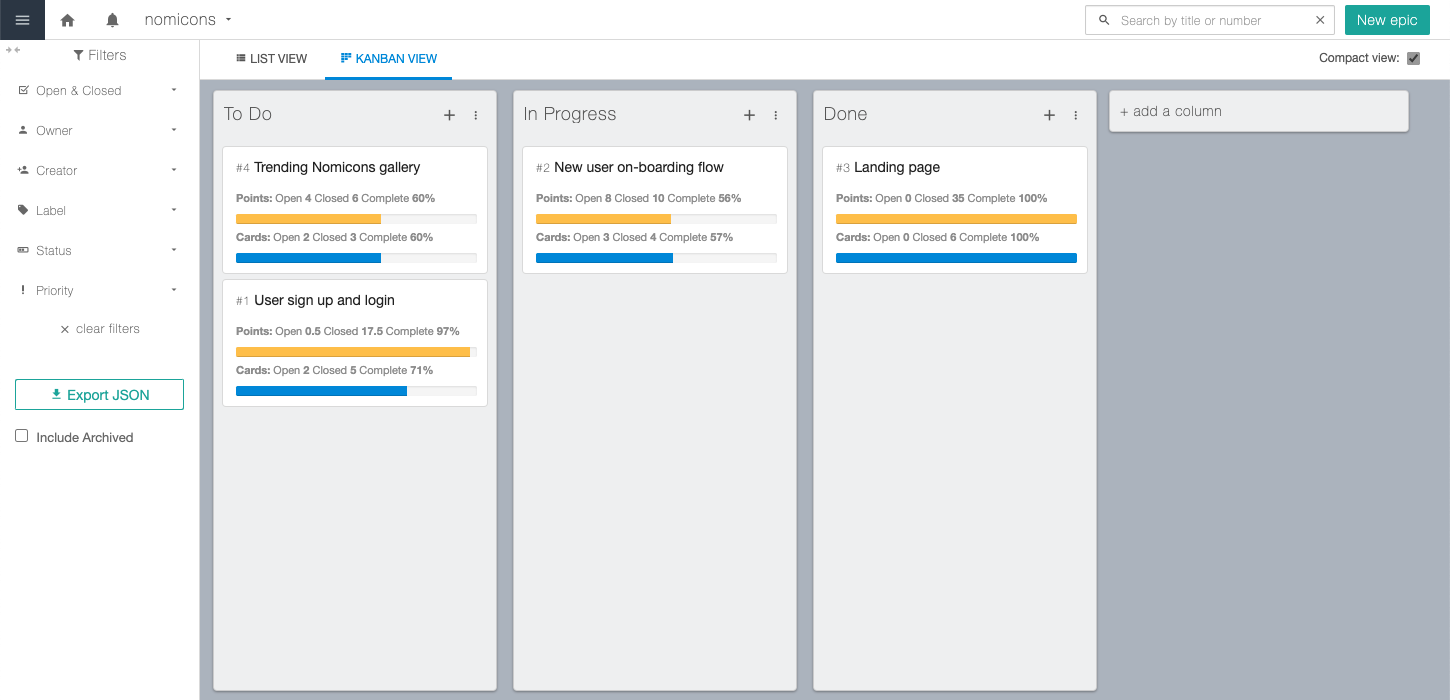
    <content type="html"><![CDATA[<h3 id="Easily-organize-your-epics-with-the-new-kanban-view"><a href="#Easily-organize-your-epics-with-the-new-kanban-view" class="headerlink" title="Easily organize your epics with the new kanban view!"></a>Easily organize your epics with the new kanban view!</h3><p>We’re super excited to announce the new epic kanban view! Now, your project’s epics view has a tab at the top of the page that lets you choose between “list view” and “kanban view”. The kanban view is populated with three standard columns called “To Do”, “In Progress”, and “Done”, but you can freely change the columns to create whatever workflow will work best for your team. Once your columns are set up to your liking, you can start managing your epics by simply dragging them around.</p><p><img src="/blog/images/epic_kanban_view/epic_kanban_view.png" alt="A kanban board view of epics in various stages of a simple workflow" title="GitHub project management is easier with epics in a kanban board view."></p><h4 id="Epic-kanban-view-tips"><a href="#Epic-kanban-view-tips" class="headerlink" title="Epic kanban view tips"></a>Epic kanban view tips</h4><p>There are few things worth pointing out about how the epic kanban board functions. First off, it’s good to know that all of your epics will appear on the kanban board unless they are “archived”. Currently, epics are not automatically archived, so if you would like an epic to be removed from your epic kanban view then you’ll want to open up an epic and click the Archive button. If, for some reason, you also want to see your archived epics on the kanban board, then that’s easy to accomplish by selecting the option at the bottom of the left filter bar that says “Include Archived”.</p><p>Another good thing to know is that the column that an epic is in on the kanban board is not related to the “status” of an epic. Since epics are intended to be linked to a bunch of cards that need to be completed in order for the epic to be completed, the status of an epic is used to reflect the aggregate status of its cards, and not necessarily the workflow state of the epic itself. So, we haven’t included any automation for moving epics around on the kanban board when the epics status changes.</p><p>The final epic kanban view tip is that newly created epics will be added to the end of the leftmost column on the kanban view if you create an epic using the “New epic” button, or if you create an epic through the API. So if you’re having trouble finding newly created epics on the kanban view, now you know where to look.</p><p>We hope that the new epic kanban view will allow you more easily manage your epics and get a clearer picture of where they are in your workflow. If you’re so inclined, please let us know via email, team@zube.io, how the epic kanban view is working for you, or if you have any suggestions of how it can be improved for your team!</p>]]></content>
    
    <summary type="html">


        &lt;h3 id=&quot;Easily-organize-your-epics-with-the-new-kanban-view&quot;&gt;&lt;a href=&quot;#Easily-organize-your-epics-with-the-new-kanban-view&quot; class=&quot;headerlin
      
    
    </summary>
    
    
  </entry>
  
  <entry>
    <title>Introducing Custom Fields</title>
    <link href="https://zube.io/blog/introducing-custom-fields/"/>
    <id>https://zube.io/blog/introducing-custom-fields/</id>
    <published>2021-08-03T01:02:30.000Z</published>
    <updated>2021-08-03T21:28:07.865Z</updated>
    
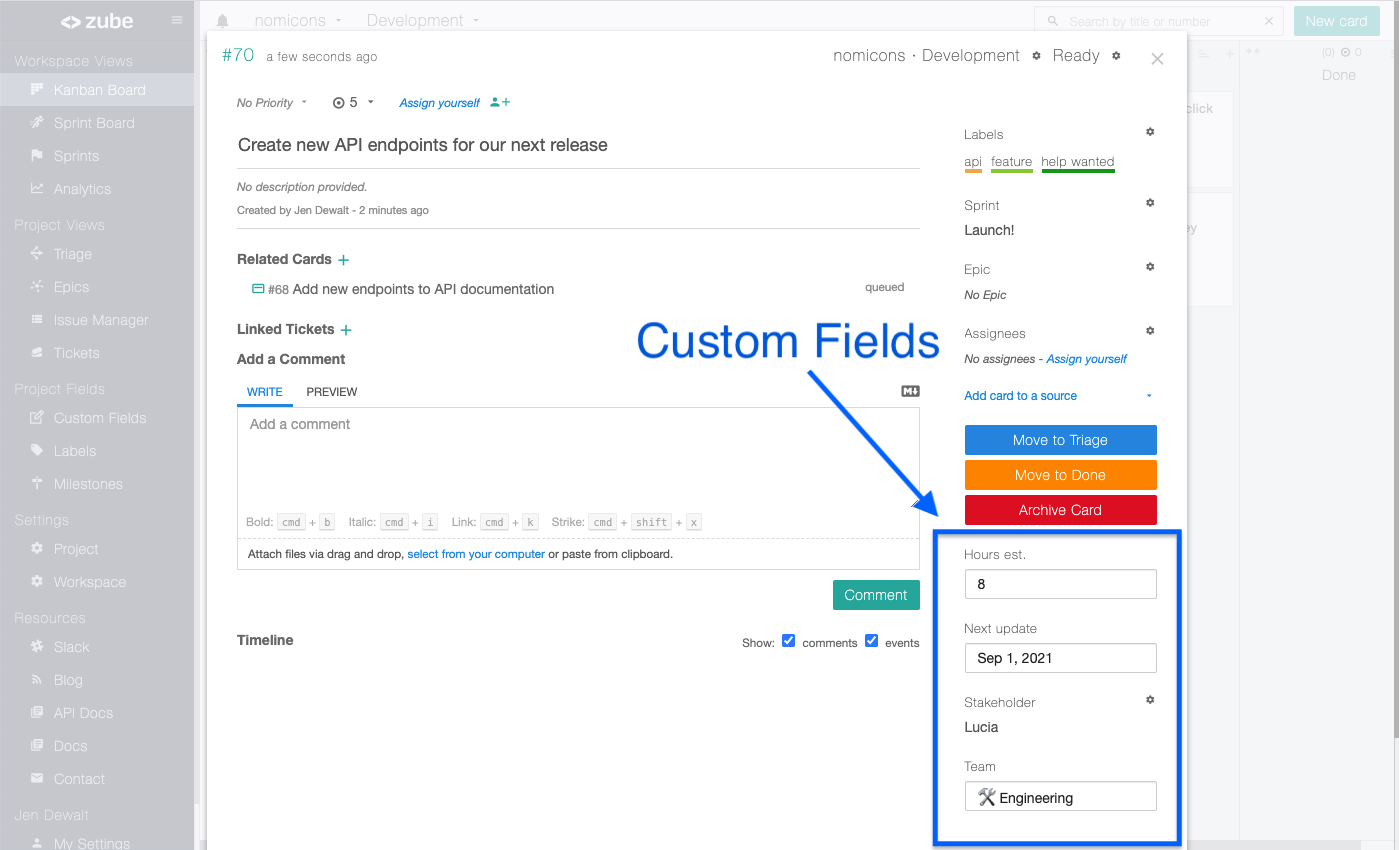
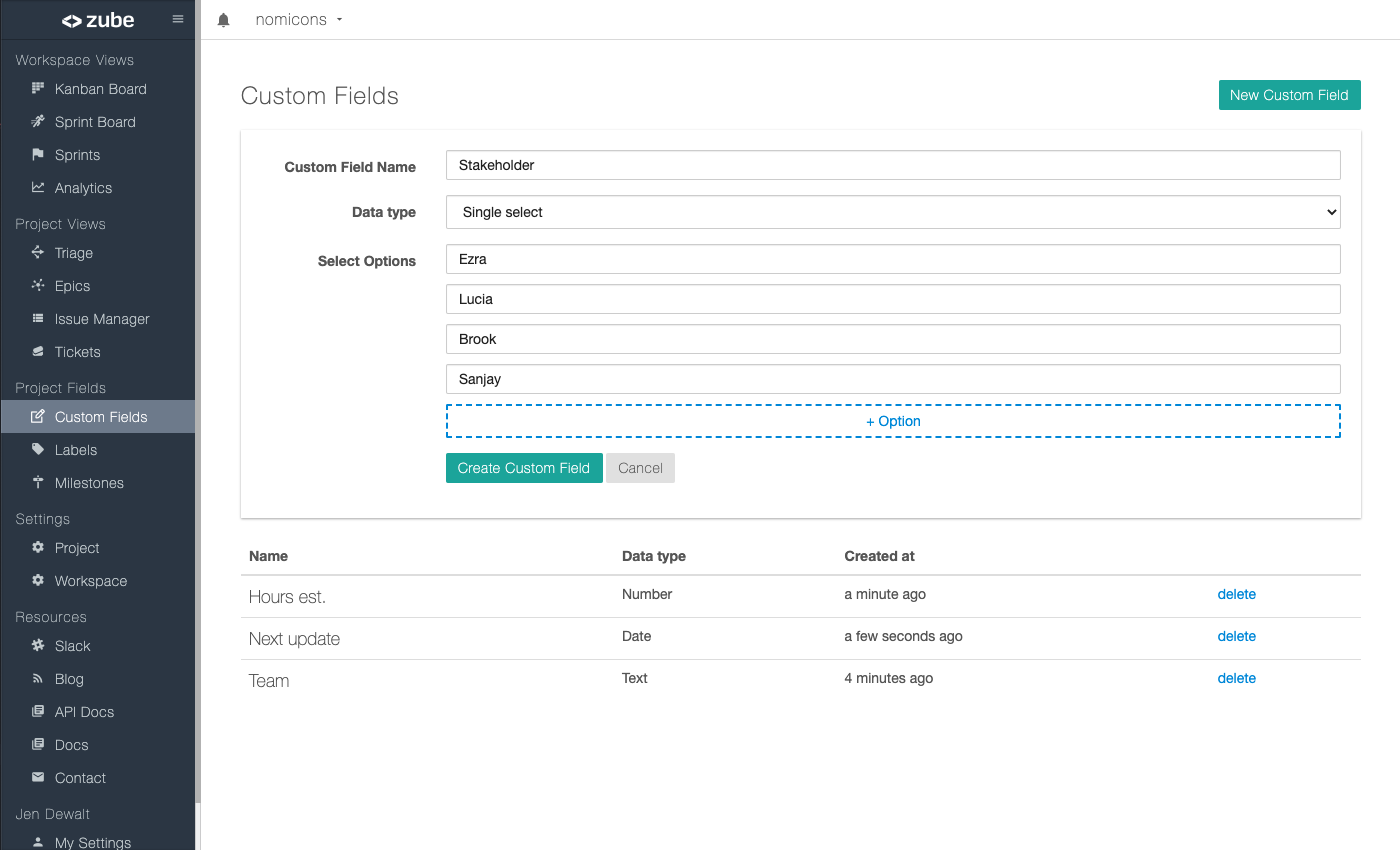
    <content type="html"><![CDATA[<h3 id="Custom-Fields-are-Here"><a href="#Custom-Fields-are-Here" class="headerlink" title="Custom Fields are Here!"></a>Custom Fields are Here!</h3><p>There’s a world of new possibilities now that Zube allows you to add custom fields to your cards. Custom fields come in a few different flavors: Date, Number, Text, and Single Select from a dropdown list. A custom field will automatically show up on all of your project cards after you create one, so if you’ve ever wished Zube had just a bit more, then this is the feature for you!</p><p><img src="/blog/images/custom_fields/card_with_custom_fields.png" alt="A card with custom fields" title="card custom fields let you add any missing Agile project management components."></p><h4 id="How-Custom-Fields-Work"><a href="#How-Custom-Fields-Work" class="headerlink" title="How Custom Fields Work"></a>How Custom Fields Work</h4><p>Custom fields work just like the stock fields that come out of the box on cards like priority, points, etc.. The one difference is that you have to create a custom field first, before it will show up on a card. Fortunately, that’s really easy to do by clicking the “Custom Fields” link on the left sidebar of any project view. That new “Custom Fields” link will take you to a page where you can view all of your custom fields and create new ones.</p><p><img src="/blog/images/custom_fields/custom_fields_create.png" alt="A project&#39;s custom fields with new custom field form" title="Easily add custom fields to your Agile Zube projects."></p><p>There are four different types of custom fields, so we’ll just go through each one in order. First up is the Date custom field. This custom field only accepts a single valid date. This would be a good choice if you wanted to store something like a due date, start date, or estimated completion date, for example.</p><p>The next option is the Number custom field. Number custom fields will store numeric values like 1, 5, 324, 0.236, 2.719, etc.. They are useful when you want to store, well… numbers. Something like number of hours; value of a task; or the cost of a feature, would all be good choices for a Number custom field.</p><p>The Text custom field is next. You can type anything you want into it, which makes it very flexible. You’d want to go with a Text custom field when you want quick access to the information in the future. For example, if your card has an associated contact name, phone number, email address, or physical address, then those would all be good candidates. Pretty much anything that isn’t a number or a date belongs in a Text custom field.</p><p>The final custom field is the Single Select. A Single Select is just a fancy name for a custom dropdown that lets you choose from one of its options. That means that in order to use the Single Select custom field you first need to make the possible options. Each dropdown option is a text field so you can make it pretty much anything you like. After you’ve created a Single Select custom field it will show up as a dropdown on all of your project cards. A good use case for the Single Select custom field is when you know what all the possible options are. As an example you might want to indicate who the main stakeholder is for a card. Assuming your company only works with a small number of stakeholders then you would just enter all of their names as Single Select options. That way you could easily see all of them on the card and choose the correct one.</p><p>We hope the new custom fields feature will make Zube work even better for you and your team! We’ll be adding some new features to custom fields in the coming weeks, but please feel free to reach out to team@zube.io at any time to let us know how custom fields are working for you!</p>]]></content>
    
    <summary type="html">


        &lt;h3 id=&quot;Custom-Fields-are-Here&quot;&gt;&lt;a href=&quot;#Custom-Fields-are-Here&quot; class=&quot;headerlink&quot; title=&quot;Custom Fields are Here!&quot;&gt;&lt;/a&gt;Custom Fields are H
      
    
    </summary>
    
    
  </entry>
  
  <entry>
    <title>Recent Improvements</title>
    <link href="https://zube.io/blog/recent-improvements/"/>
    <id>https://zube.io/blog/recent-improvements/</id>
    <published>2021-04-23T01:03:39.000Z</published>
    <updated>2021-04-23T00:41:29.324Z</updated>
    
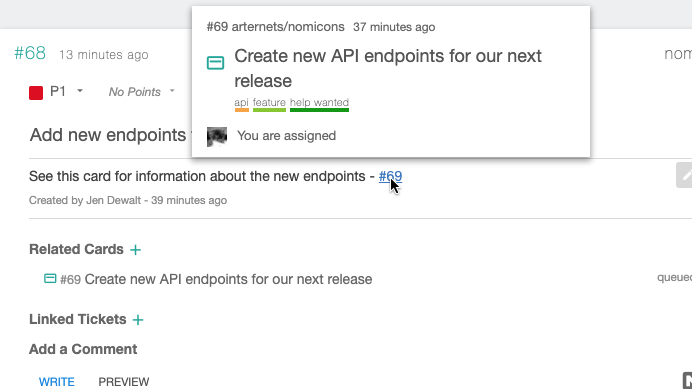
    <content type="html"><![CDATA[<h3 id="Many-enhancements"><a href="#Many-enhancements" class="headerlink" title="Many enhancements"></a>Many enhancements</h3><p>We thought we’d share some of the recent improvements we’ve made to Zube. All of these enhancements were inspired by customer requests, so we’d like to thank you for the suggestions! As always, we’d love to hear any ideas you have for features or enhancements that would make your time on Zube more enjoyable.</p><h4 id="Card-Epic-and-Ticket-previews"><a href="#Card-Epic-and-Ticket-previews" class="headerlink" title="Card, Epic, and Ticket previews"></a>Card, Epic, and Ticket previews</h4><p>One thing you may have already noticed are the popups that appear whenever you hover over a link to a Card, Epic, or Ticket. These previews let you quickly see what’s behind the links and they’re super useful for getting the information you need without having to leave the current page.</p><p><img src="/blog/images/recent_improvements/card_previews.png" alt="An example of a card preview popup" title="Agile project management is now faster with previews of GitHub issues, cards, epics, and tickets."></p><h4 id="New-dropdown-menus"><a href="#New-dropdown-menus" class="headerlink" title="New dropdown menus"></a>New dropdown menus</h4><p>We reworked all of our dropdown menus so they are easier to use. They now display more consistently and utilize more of the available screen space so it’s easier to find and select items. And even though we think using the new dropdowns is a much improved experience, we have some additional dropdown improvements in our pipeline as well. So, be on the lookout for those.</p><h4 id="Workspace-Timezones"><a href="#Workspace-Timezones" class="headerlink" title="Workspace Timezones"></a>Workspace Timezones</h4><p>Workspaces now have timezones so you can track your work relative to a team’s primary location. Specifically, a Workspace timezone is used to determine when your Sprint stats should be collected. Sprint stats are what are displayed in the burndown and burnup charts, so the dates there will now be aligned with whatever timezone you have selected. You can select your timezone in the Workspace Settings.</p><h4 id="A-setting-to-hide-Pull-Requests-from-your-Boards"><a href="#A-setting-to-hide-Pull-Requests-from-your-Boards" class="headerlink" title="A setting to hide Pull Requests from your Boards"></a>A setting to hide Pull Requests from your Boards</h4><p>Another Workspace Setting is the ability to choose if you want Pull Requests to be displayed on your Kanban and Sprint Boards. We conducted a survey and found out that many teams do not manage their Pull Requests on their boards. While you are able to hide Pull Requests using the Card Type filter, that filter only hides Pull Requests for the current viewer, which is not ideal. The new Workspace Setting allows you to remove Pull Requests from your Boards entirely so they won’t be there for all Workspace users. If you do happen to want to see your Pull Requests, you can either turn the setting back on, or alternatively head over to the Issue Manager, where Pull Requests are always visible.</p><h4 id="Ability-to-suppress-GitHub-related-notifications"><a href="#Ability-to-suppress-GitHub-related-notifications" class="headerlink" title="Ability to suppress GitHub related notifications"></a>Ability to suppress GitHub related notifications</h4><p>Zube has the world’s best integration with GitHub Issues. Usually this is great! Almost all of the things you do on Zube are synced with GitHub in real time and vice versa. The one potential downside is managing duplicate notifications. If you already have GitHub set up to notify you of actions that happen to GitHub Issues on GitHub, then perhaps you do not want Zube to also notify you of those same events. The best way to accomplish this is to go through every possible event type and disable Zube notifications for the events that are already being sent to you by GitHub. However, this can be tedious and perhaps all you want is for Zube to notify you of things that happen to Zube-only cards, and have GitHub notify you of things that happen to GitHub issues. If that’s how you’d like to work, then you’ll love our new notification setting that does just that! You can find the setting at the top of Workspace Settings -&gt; Workspace notifications and also in your Project Settings -&gt; Triage Notifications (if you have Triage enabled).</p><h4 id="Performance-improvements"><a href="#Performance-improvements" class="headerlink" title="Performance improvements"></a>Performance improvements</h4><p>Zube is already super fast, so most of these enhancements are just to make things work even faster. We’ve improved notification time so @mentions and other user notifications are sent out in as close to real time as possible. We’ve also reduced the lag that you may have noticed when dragging cards between long columns. So, dragging cards around your boards should be smoother and more predictable now. And just so you’re aware, we pride ourselves in Zube being super fast and responsive, so if there’s anything you ever come across that seems slow, please let us know and we’ll find a way to speed it up for you.</p><p>We hope these improvements have made Zube more enjoyable to use, and we’ll keep them coming! Feel free to let us know if there’s something that you’d like to see improved or any new features you’d love to see. We’re easy to reach via email <a href="mailto:team@zube.io">team@zube.io</a>.</p>]]></content>
    
    <summary type="html">


        &lt;h3 id=&quot;Many-enhancements&quot;&gt;&lt;a href=&quot;#Many-enhancements&quot; class=&quot;headerlink&quot; title=&quot;Many enhancements&quot;&gt;&lt;/a&gt;Many enhancements&lt;/h3&gt;&lt;p&gt;We thought
      
    
    </summary>
    
    
  </entry>
  
  <entry>
    <title>New Card Templates</title>
    <link href="https://zube.io/blog/new-card-templates/"/>
    <id>https://zube.io/blog/new-card-templates/</id>
    <published>2020-12-22T00:02:04.000Z</published>
    <updated>2020-12-21T22:56:11.865Z</updated>
    
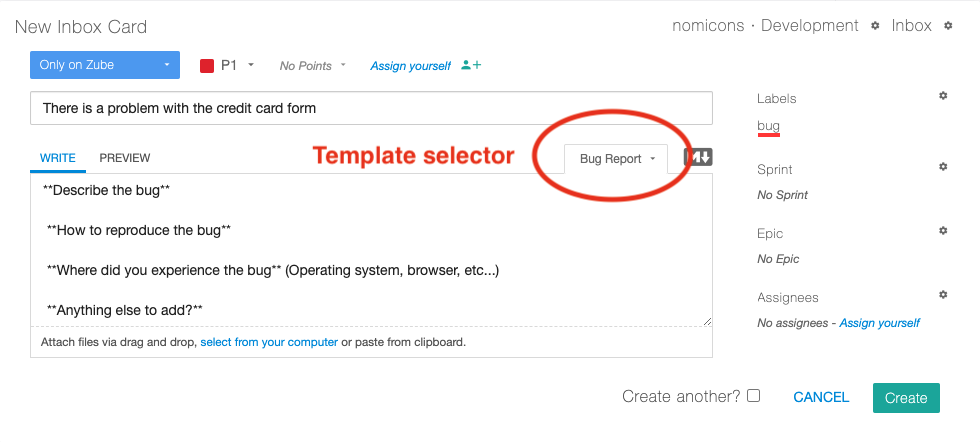
    <content type="html"><![CDATA[<h3 id="Introducing-Workspace-Card-Templates"><a href="#Introducing-Workspace-Card-Templates" class="headerlink" title="Introducing Workspace Card Templates"></a>Introducing Workspace Card Templates</h3><p>We’re happy to announce a new feature on Zube that lets you easily add templated information to your new Cards. Card Templates can be created for any Workspace on Zube by visiting the Workspace Settings and choosing the Card Templates tab. From there, it’s simple to create a Card Template for your Workspace, so go ahead and make as many templates as your heart desires!</p><h4 id="Card-Templates-as-a-guide"><a href="#Card-Templates-as-a-guide" class="headerlink" title="Card Templates as a guide"></a>Card Templates as a guide</h4><p>The purpose of Card Templates is to help your teammates know what information is most useful to include in a new card. Zube allows you to create multiple Card Templates so your teammates can choose the type they need. For example, one useful template could be a Bug Report template. When creating a bug report, it is often difficult to know what information the developers would find most useful, especially if many of your teammates are non-technical. Card Templates solve this problem by allowing your teammates to choose the Bug Report template when they’re making a new card. When they choose the Bug Report template, a description of the information they should include will be automatically added to the body of their new card.</p><p><img src="/blog/images/new_card_templates/card_template.png" alt="A new card highlighting the template selector" title="Card templates let your team do Agile project management while also working like GitHub Issues."></p><p>We’ve included a couple of example templates (a Bug Report template and a Feature Request template) for you to choose from when you’re creating a new Workspace card template. However, you’re free to change the content of the Template however you like. The Template’s content is in markdown syntax, so it will look good on the new cards.</p><p>We hope the new Card Templates feature helps your team create new cards more quickly and consistently. As always, we appreciate your suggestions for features that you’d find useful, so please shoot us an email <a href="mailto:team@zube.io">team@zube.io</a>.</p>]]></content>
    
    <summary type="html">


        &lt;h3 id=&quot;Introducing-Workspace-Card-Templates&quot;&gt;&lt;a href=&quot;#Introducing-Workspace-Card-Templates&quot; class=&quot;headerlink&quot; title=&quot;Introducing Workspac
      
    
    </summary>
    
    
  </entry>
  
  <entry>
    <title>Announcing the Ability to Duplicate a Card</title>
    <link href="https://zube.io/blog/announcing-the-ability-to-duplicate-a-card/"/>
    <id>https://zube.io/blog/announcing-the-ability-to-duplicate-a-card/</id>
    <published>2020-11-23T23:21:56.000Z</published>
    <updated>2020-11-23T22:21:24.212Z</updated>
    
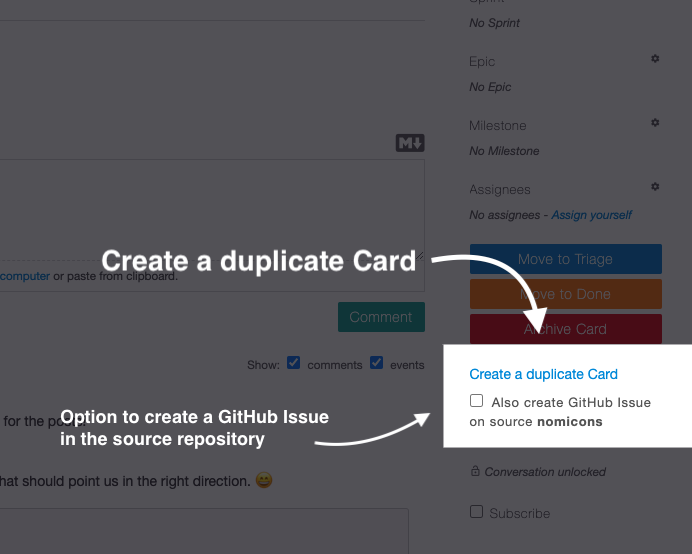
    <content type="html"><![CDATA[<h3 id="Easily-duplicate-a-Card"><a href="#Easily-duplicate-a-Card" class="headerlink" title="Easily duplicate a Card"></a>Easily duplicate a Card</h3><p>You can now easily clone cards on Zube! You can duplicate any card you’d like with a single click from the “Create a duplicate Card” section, just below the action buttons on the card details view. You can also choose to automatically create a new GitHub issue that syncs with your Zube card in real time.</p><p><img src="/blog/images/announcing_the_ability_to_duplicate_a_card/duplicate_a_card.png" alt="Detail view of a card highlighting where to create a duplicate card" title="Being able to copy a card makes your project management even more Agile."></p><h4 id="Why-duplicate-a-card"><a href="#Why-duplicate-a-card" class="headerlink" title="Why duplicate a card?"></a>Why duplicate a card?</h4><p>Adding the ability of clone a card has been a frequent request and there’s a few occasions where duplicating a card can save a lot of time. The primary motivation for duplicating a card is when you want a new card with most of the same associations. Say, for example, that you have a card that is on an Epic, assigned to two people, and has three related cards. Perhaps you want to break this card down into some smaller tasks, all of which will be on the same Epic, have the same assignees, and should be linked to the same related cards. Duplicating the card would be the way to go! Since duplicating a card also duplicates the associations, all you’ll need to do is to change the title and points on the new cards and you’ll be finished.</p><p>From a higher perspective, actually wanting an exact duplicate of a card is extremely rare. However, wanting a new card that is mostly the same as an existing card is something that comes up all the time. The next time it happens, save yourself some time and create a duplicate of an existing card and just change a thing or two.</p><p>We hope this new feature makes your time with Zube just that much more enjoyable, and we’d love to hear about new features you’re interested in seeing. Please send your ideas to <a href="mailto:team@zube.io">team@zube.io</a>.</p>]]></content>
    
    <summary type="html">


        &lt;h3 id=&quot;Easily-duplicate-a-Card&quot;&gt;&lt;a href=&quot;#Easily-duplicate-a-Card&quot; class=&quot;headerlink&quot; title=&quot;Easily duplicate a Card&quot;&gt;&lt;/a&gt;Easily duplicate 
      
    
    </summary>
    
    
  </entry>
  
  <entry>
    <title>Automatic Archiving of Closed Cards</title>
    <link href="https://zube.io/blog/automatic-archiving-of-closed-cards/"/>
    <id>https://zube.io/blog/automatic-archiving-of-closed-cards/</id>
    <published>2020-10-07T01:59:50.000Z</published>
    <updated>2020-10-07T18:54:59.954Z</updated>
    
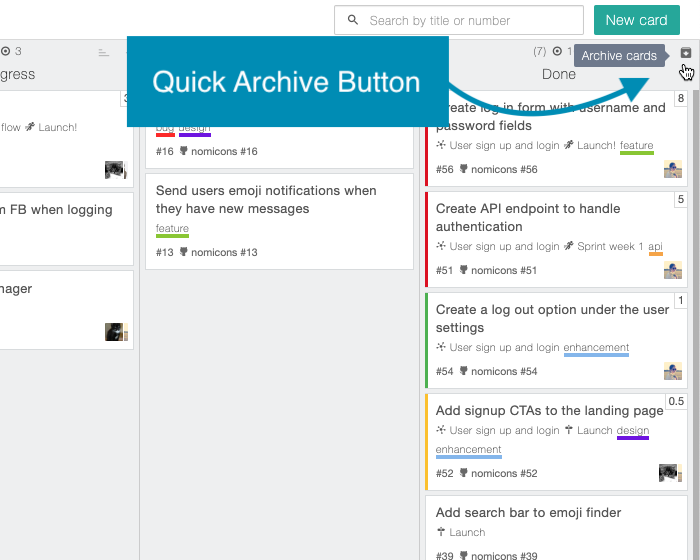
    <content type="html"><![CDATA[<p>Beginning Monday October 12th, Zube will automatically archive cards in your Done column that have been closed for more than 90 days. Automatically archiving your stale closed cards will help ensure that your boards load quickly and will keep your workspaces better organized. If you’d like to Archive your closed cards sooner than 90 days, you can still do so manually at any time by pressing the “Archive cards” button in the top right of the Done column.</p><p><img src="/blog/images/automatic_archiving_of_closed_cards/quick_archive.png" alt="Detail of the manual Archive cards button" title="Archiving Agile cards helps keep your Kanban and Sprint boards tidy."></p><h4 id="Where-are-my-Archived-cards"><a href="#Where-are-my-Archived-cards" class="headerlink" title="Where are my Archived cards?"></a>Where are my Archived cards?</h4><p>When a card is Archived, it will be removed from all columns on your boards (the Kanban Board and Sprint Board). Archived cards are still visible in all other places, such as Epics and Tickets. At any time, you can view your Archived cards by visiting the Issue Manager. For cards that were on a Workspace, you can view them by selecting your Workspace from the Workspace selector on the filter bar, and then choosing the Category “Archive”. In rare instances, you may have cards that were closed before they were ever added to a Workspace, for example, if you closed a card while it was in Triage. To view these cards, you should choose “No Workspace” from the Workspace selector on the filter bar and then choose “Closed only” from the card state selector.</p><p>If you’d like to disable the Automatic Archive feature, you can do so for each Workspace by visiting the Workspace Settings and toggling the Auto Archive setting under the Auto Archive Stale Closed Cards section. If you disable the setting, be sure to periodically Archive your unneeded closed cards manually to keep your boards speedy and organized.</p><p>If you have any feedback about this new feature or just want to reach out to us for any other reason, please do so at <a href="mailto:team@zube.io">team@zube.io</a>.</p>]]></content>
    
    <summary type="html">


        &lt;p&gt;Beginning Monday October 12th, Zube will automatically archive cards in your Done column that have been closed for more than 90 days. Aut
      
    
    </summary>
    
    
  </entry>
  
  <entry>
    <title>Enhancements That Take Filtering to the Next Level</title>
    <link href="https://zube.io/blog/enhancements-that-take-filtering-to-the-next-level/"/>
    <id>https://zube.io/blog/enhancements-that-take-filtering-to-the-next-level/</id>
    <published>2020-09-21T21:18:35.000Z</published>
    <updated>2020-09-21T21:32:29.198Z</updated>
    
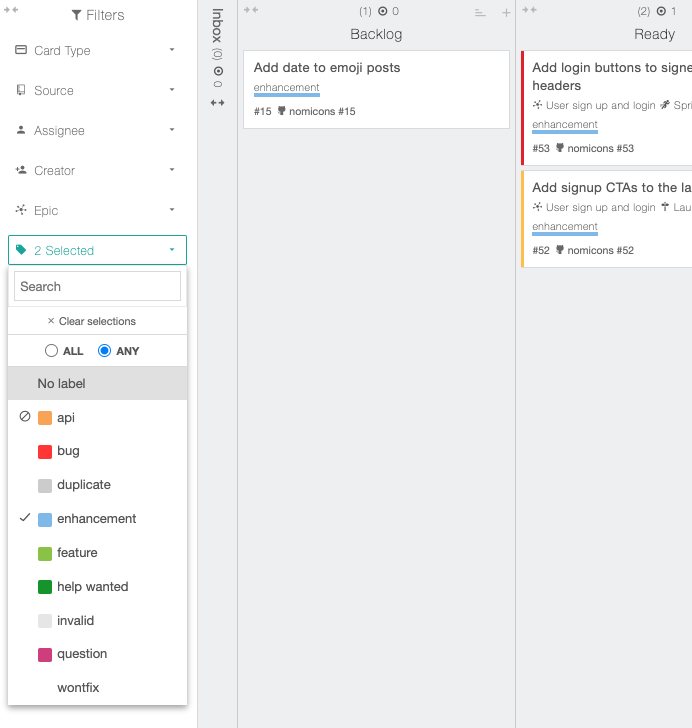
    <content type="html"><![CDATA[<h3 id="New-powerful-filtering"><a href="#New-powerful-filtering" class="headerlink" title="New powerful filtering"></a>New powerful filtering</h3><p>You can now use the filters to find Cards, Tickets, and Epics in exciting new ways! We have added the “Not” feature to the filters, so you’ll only get back results that do not contain the selected attribute. You can also limit your results to “All” selections now, which means that it’s easy to exclude items that do not have all of the selected attributes. The best part is that it’s super easy to start using these new features today, since they’re built right into the filters themselves!</p><h4 id="Motivation"><a href="#Motivation" class="headerlink" title="Motivation"></a>Motivation</h4><p>There’s obviously a lot of ways powerful filtering can be used, but the most common thing you’ll want to use is the “Not” capability. Wanting to exclude something comes up quite often during the planning phase of your work cycle. If you’re trying to figure out what to work on this week, for example, you might want to display all the cards that are labeled “Customer Request”, but do not have the label “Needs More Info”. Another common use case for the “Not” capability is to remove cards that are already assigned to you so you can more easily see what everyone else is working on.</p><p>The other new feature of the filters is to be able to drill down to an increasingly more specific set of attributes, such as being able to find all cards that are labeled both “Bug” and “Quick Fix”, for example. Previously, an individual item was included in the results if it matched any of the selected attributes, so selecting multiple attributes would produce an increasingly larger set of results. The new “And” capability of the filter does the opposite and allows you to get back only those results that match all of the selected attributes.</p><p><img src="/blog/images/filter_enhancements/fancy_filter.png" alt="A close look at an enhanced filter" title="Planning your Agile workflow for GitHub Issues is now easier with these enhanced filters."></p><h4 id="A-deeper-look-into-how-the-filters-work"><a href="#A-deeper-look-into-how-the-filters-work" class="headerlink" title="A deeper look into how the filters work"></a>A deeper look into how the filters work</h4><p>If you’re trying to do some complex querying with the enhanced filters, then this is the section for you! We designed the filters to work in “the way you’d expect”, but it’s actually a bit complicated under the hood, so we thought it would be helpful to run over how all the logic is hooked up. To start with, a filter bar (like the one pictured above) has a bunch of individual filters. Each of the those filters are AND’d together. So the results you see on the screen have successfully passed the logic of each individual filter.</p><p>Within an individual filter, the mode can be set to “All” or “Any”. These modes apply to the filter selections and the “Not” selections individually. The important thing to note here is that the normal selections are evaluated separately from the “Not” selections. A item will appear on the screen only if it has passed both the selections and the “Not” selections independently.</p><p>TL;DR Selections and “Not” selections are evaluated independently using the logic of the specified mode “All” or “Any” before being combined exclusively along with the results of all the other filters.</p><p>As always, we’d be delighted to hear about new features you’d love to see, so feel free to reach out to us at <a href="mailto:team@zube.io">team@zube.io</a> with your ideas!</p>]]></content>
    
    <summary type="html">


        &lt;h3 id=&quot;New-powerful-filtering&quot;&gt;&lt;a href=&quot;#New-powerful-filtering&quot; class=&quot;headerlink&quot; title=&quot;New powerful filtering&quot;&gt;&lt;/a&gt;New powerful filteri
      
    
    </summary>
    
    
  </entry>
  
  <entry>
    <title>Combating Angst with Authentic Leadership</title>
    <link href="https://zube.io/blog/combating-angst-with-authentic-leadership/"/>
    <id>https://zube.io/blog/combating-angst-with-authentic-leadership/</id>
    <published>2020-06-01T22:29:25.000Z</published>
    <updated>2020-10-07T18:58:49.921Z</updated>
    
    <content type="html"><![CDATA[<h3 id="The-Erosion-of-Certainty"><a href="#The-Erosion-of-Certainty" class="headerlink" title="The Erosion of Certainty"></a>The Erosion of Certainty</h3><p>The world is going through a rough patch right now. The global pandemic and the underlying social instability makes it almost impossible to find anyone whose world hasn’t been turned upside down. In this blog post we’ll frame the current state of the workplace and offer up some tips to help focus your team. But before we start, some of your team members may be suffering more greatly than others. We encourage you to reach out to your coworkers to find out exactly what they’re going though right now and how you can help. Even if your team members haven’t suffered a tangible loss and think that they’re doing just fine, it does not mean that they aren’t hurting emotionally. The common trope is that “everything’s different now”, but if you were to take a step back and look at things objectively, what you’d find is that things are essentially the same. What’s changed is not so much the objective world, but everyone’s perception of the world. Specifically, what’s changed is the notion of certainty during a time of rapid change. How are we to act today when we can’t envision the world of tomorrow?</p><p><img src="/blog/images/combating_angst_with_authentic_leadership/productive.png" alt="Reduce anxiety by orienting your team" title="Scrum and Agile can be very beneficial during times of uncertainty."></p><h4 id="The-Effects-of-Uncertainty-on-Productivity"><a href="#The-Effects-of-Uncertainty-on-Productivity" class="headerlink" title="The Effects of Uncertainty on Productivity"></a>The Effects of Uncertainty on Productivity</h4><p>With no clear leadership and rampant fear, the natural thing to do is to hunker down. After all, uncertainty in the abstract sense means that you’re not equipped to properly evaluate what effect your actions will have on the world. Here at Zube, we wouldn’t presume to offer an opinion on how our political leaders should be acting to best get us through this rough patch, but we can offer some guidance that will help your team remain as productive as possible during these uncertain times.</p><p>First, take stock of your current situation. Your team is hurting because they’ve lost certainty in what they’re doing. Ignoring this fact is very dangerous and can lead to the implosion of your entire project. The startup world gives us a glimpse of the potential fallout from uncertainty. Almost all startups in the early stages are faced with potentially crippling uncertainty on a daily basis. From a rational standpoint, their anxiety is not unwarranted. The odds of succeeding are stacked against them. The possibility of not existing in the future makes it difficult to ascribe concrete value to what they’re working on today. This lack of certainty can lead to inaction and eventually to complete failure. Most startups fail not due to a particular event. Instead, they just sort of stop working on the problem they are trying to solve. It’s not that they’re lazy, it’s just that the fear of the unknown has won out over their enthusiasm for working toward a better tomorrow.</p><p>So, to borrow a cliché, as a team leader you have to recognize that this is the “new normal”. Your team members are most likely in the mindset that the world is getting worse instead of better; failure is more likely than success; and nothing can be taken for granted, including their continued employ at your company. It’s your mission to actively combat these notions, because even if you had great team buy-in before the lockdown, it’s unlikely that your team is currently operating with unquestioning enthusiasm.</p><h4 id="Structure-Helps-to-Combat-the-Fear-of-the-Unknown"><a href="#Structure-Helps-to-Combat-the-Fear-of-the-Unknown" class="headerlink" title="Structure Helps to Combat the Fear of the Unknown"></a>Structure Helps to Combat the Fear of the Unknown</h4><p>We generally recommend a very light structure for your team as we’ve <a href="https://zube.io/blog/management-what-is-it-good-for/">written about before</a>. Our standard philosophy that is all you really need to do is to imbue your team with a sense of purpose and then get out of their way. However, that’s going to be a very tricky proposition in the current climate. So instead, let’s talk about what structure you can put in place to breath new life into your team. The most important thing you can implement, if you haven’t done so already, is Sprints. Sprints let you timebox your work and track your progress, but an important feature of Sprints that’s underutilized is that they can become meaningful in their own right. The way to make that happen is to align the Sprint with a team goal, which we know goes against strict Agile practices. You are supposed to use Epics to define goals, not Sprints. But sometimes your team needs a kick in the pants and there’s nothing like a goal with a deadline (a Sprint) to focus and align a team.</p><p>One important tip here is to make sure your Sprints are really short. Sprints should be one to two weeks and no longer (we recommend one week Sprints). It is vital to celebrate every time you finish a Sprint, which means you’ll be celebrating your team’s accomplishments every week (or two). If you don’t applaud your team’s successes then you’ll surely ruin any momentum your team has gained. This probably means altering your retrospectives. The standard format for a retrospective is to acknowledge what worked well during the Sprint, but then focus on what didn’t work and how it can be improved in the next Sprint. Flip your retrospective script and <strong>really</strong> focus on what worked. The onus, then, will be on you to make sure everything is running smoothly during the week so you’ll have to take a more active role removing impediments to your team’s success.</p><p>The second most impactful bit of structure you can add is to use points (story points) and point your cards collaboratively. You could decide on a card’s points in an unbiased way by doing something like <a href="https://zube.io/blog/how-to-avoid-the-four-planning-pitfalls/">Planning Poker</a>, or you could just do it openly in a meeting or group video chat. Here at Zube, we do it openly by discussing what everyone thinks the points should be. We’re not terribly concerned about bias in the pointing process. Instead, we’re more interested in surfacing dependencies that an individual team member might overlook if they were doing the pointing process in isolation. Pointing cards is usually done to get an estimate of the complexity of total work for the week, but that’s not the main purpose here. In this case, using points makes it readily visible that these cards are not insurmountable tasks. It makes it much more obvious to your team that once they start working on a card, they’ll be able to complete it in a reasonable amount of time and progress will have been made. Remember, one of the biggest problems your team is facing is fear of the unknown. Pointing your cards helps make the unknown just a little more known.</p><p>The final tip is to break your cards down into really, <em>really</em> small chunks of work. Instead of having an 8 point card, for example, break the card down into five smaller cards that are 2, 2, 2, 1, and 1 points each. Consider breaking those cards down into even smaller chunks if possible. Break them all the way down as small as you can. Yes, it’s tedious to break a task all the way down into its smallest parts, but it is worth it. Having very small cards means your team will be closing cards left and right, and every time they close a card they will build some momentum. Momentum is a great surrogate for purpose and a fantastic driver for success.</p><p>Here at Zube, we’re not immune to the current situation, but we’re pressing ahead. We understand that the best way for all of us to get through these tough times is to be as compassionate and empathetic as possible, so if there’s anything we can do to make your lives a little easier, please don’t hesitate to let us know at <a href="mailto:team@zube.io">team@zube.io</a>.</p>]]></content>
    
    <summary type="html">


        &lt;h3 id=&quot;The-Erosion-of-Certainty&quot;&gt;&lt;a href=&quot;#The-Erosion-of-Certainty&quot; class=&quot;headerlink&quot; title=&quot;The Erosion of Certainty&quot;&gt;&lt;/a&gt;The Erosion of
      
    
    </summary>
    
    
  </entry>
  
  <entry>
    <title>Introducing Zube&#39;s Public API</title>
    <link href="https://zube.io/blog/introducing-zube-s-public-api/"/>
    <id>https://zube.io/blog/introducing-zube-s-public-api/</id>
    <published>2019-09-02T21:13:43.000Z</published>
    <updated>2019-09-02T22:02:45.306Z</updated>
    
    <content type="html"><![CDATA[<h3 id="Announcing-Zube’s-Public-API"><a href="#Announcing-Zube’s-Public-API" class="headerlink" title="Announcing Zube’s Public API"></a>Announcing Zube’s Public API</h3><p>When we asked our top companies what feature they’d love to see, being able to access Zube programmatically was top of the list. From day one, the Zube web client has used our internal API, but now we’ve opened up all that power to you! Almost everything that can be done through the web interface can be done through our public API, which means you can easily enhance or automate your workflow.</p><h4 id="How-it-works"><a href="#How-it-works" class="headerlink" title="How it works"></a>How it works</h4><p>The Zube public API is a full featured and powerful RESTful API. Like many of the best contemporary APIs, authentication is done with user tokens (JWTs) so all the requests that you make will be just like you had issued them from the web interface. You’ll be able to access and manipulate the same data and all changes will be properly attributed to you. The details of how to issue yourself a JWT and the full list of API endpoints can be found in our <a href="https://zube.io/docs/api">API documentation</a>.</p><h4 id="Responsible-Usage"><a href="#Responsible-Usage" class="headerlink" title="Responsible Usage"></a>Responsible Usage</h4><p>Being a responsible user of the Zube public API may be more complicated than you’re used to because of Zube’s seamless integration with GitHub Issues. If you are only making changes to data that are not shared with GitHub (local cards, epics, tickets, sprints), then the Zube API is very performant and you shouldn’t run into any trouble. However, if you’re making changes to data that are shared with GitHub (almost everything on a GitHub backed card), then the Zube API may allow you make changes faster than the GitHub API permits, and you may accidentally hit their rate limit before you hit our rate limit. So, when you’re making requests to the Zube API that have the side effect of changing data on GitHub as well, it’s best to add a second or two between requests.</p><p>We’re really looking forward to hearing all about the great things you’ll be able to do now that the Zube public API is live, so please feel free to reach out to <a href="mailto:team@zube.io">team@zube.io</a> with your success stories, or to <a href="mailto:support@zube.io">support@zube.io</a> if you run into any trouble. Happy coding!</p>]]></content>
    
    <summary type="html">


        &lt;h3 id=&quot;Announcing-Zube’s-Public-API&quot;&gt;&lt;a href=&quot;#Announcing-Zube’s-Public-API&quot; class=&quot;headerlink&quot; title=&quot;Announcing Zube’s Public API&quot;&gt;&lt;/a&gt;An
      
    
    </summary>
    
    
  </entry>
  
  <entry>
    <title>Management (What is it good for)</title>
    <link href="https://zube.io/blog/management-what-is-it-good-for/"/>
    <id>https://zube.io/blog/management-what-is-it-good-for/</id>
    <published>2019-05-02T00:16:02.000Z</published>
    <updated>2019-11-10T16:38:52.509Z</updated>
    
    <content type="html"><![CDATA[<h3 id="Absolutely-Nothing"><a href="#Absolutely-Nothing" class="headerlink" title="Absolutely Nothing?"></a>Absolutely Nothing?</h3><p>It might be easy to think that management is good for nothing, but it’s not management itself that’s the problem, it’s that old-school managers inadvertently kill team gel. In this blog post, I’ll share some of my musings of the role of management in contemporary tech companies. I’ve been giving the topic a lot of thought as we gear up for the release of our public API in the next few months. Since the release of our API will allow for even more automation than Zube already has, I’ve mostly been thinking about how the role of management can best complement a more highly systematized workflow. I hope that by the end of this post you’ll appreciate the fact that the role of good management is to create meaningful team goals and to encourage team gel.</p><h3 id="Team-Gel"><a href="#Team-Gel" class="headerlink" title="Team Gel"></a>Team Gel</h3><p>You probably already know this, but team gel, above everything else, leads to success. People are social creatures and when you’re working with people you care about, trying to achieve a common goal, you can’t be stopped. Your team will go out of their way to help each other be successful. And when it comes to self-improvement and personal growth, there’s nothing more motivating than the support and encouragement of the people you care about.</p><p>As I write this, it’s the start of NBA playoffs, so I’ve been thinking about team gel in the context of basketball. Basketball is easier to think about than the workplace because the structure of the playoffs already imbues the players with purpose, to win the championship. We’ll come back to creating a sense of purpose for your team later on, but for now let’s just talk about team gel. Imagine you’re a star player on a basketball team that’s in the playoffs. It isn’t even a question if you care about your teammates. Of course you do. You need everyone to be firing on all cylinders; playing with intensity; playing unselfishly; playing as a team, because that’s how you win championships. You’ll go out of your way to help your teammates score points, and of course you’ll help defend if one of the opponents manages to slip by. Caring about your teammates extends off the court as well. You’re worried about your teammates’ health and wellbeing, and you’ll be there to support them so they can show up to the next game in top form.</p><p>People crave being part of a unified group, and their natural tendency is to form one, so why is so rare to find a unified team in the wild? The answer is that it’s very difficult for teams to form in the first place. Every team member has their own individual emotional needs and in order to get a group to unify, you have to meet everyone’s needs simultaneously. That means that there’s a lot of surface area and a lot of things that can go wrong. But since there’s a natural force driving them together, all you need to do is to remove all the impediments to formation and get out of the way.</p><p><img src="/blog/images/management_what_is_it_good_for/saltwater_fish_tank.jpg" alt="A saltwater fish tank with mini coral reef" title="Growing corals is like encouraging team gel for Agile software development."></p><p>Let me tell you a story about my 125 gallon saltwater fish tank. Many years ago I became infatuated with saltwater fish tanks like the ones you see in fancy restaurants, so I bought the tank of my dreams, a 6 foot long, 125 gallon beauty. I added the fish and corals and boom, all the corals died. I did some research and figured out that the tap water I had been adding to the tank had too many impurities for the delicate corals to thrive, so I bought an expensive water purification system to fix the problem. But even with ultra pure water, the corals still wouldn’t grow.</p><p>If you aren’t the biggest saltwater tank aficionado, growing coral is very tricky. You have to get everything just right, so it serves here as a metaphor for team unity. I poked and prodded at the tank in a bunch of different ways after that, but nothing helped. There was no magic mixture of chemicals I could add to the water to bring it into balance. It turned out that the corals weren’t growing because of me, because I kept messing with the tank. I figured this out by leaving the fish tank alone for an entire year. It wasn’t the prettiest thing. The water turned greenish brown and algae covered the glass. But over time, the water cleared, the ecosystem stabilized, and the corals flourished. I succeeded because I had removed all of the impediments to formation and got out of the way.</p><h3 id="Common-Purpose"><a href="#Common-Purpose" class="headerlink" title="Common Purpose"></a>Common Purpose</h3><p>What kills team gel with 99.9% effectiveness is top-down micromanagement with a smidge of unnecessary reporting. A good manager doesn’t try to control what their team does, but helps them flourish on their own. Like a gardener tending to a garden. But facilitating team unity is only half the job, and this is where the gardener metaphor breaks down, because your team isn’t your product. Your product is what your team produces. You have to get your team to act as a cohesive unit, not just exist as one, and that means giving them a sense of purpose. For the teams in the NBA playoffs we were discussing earlier, their purpose was clear, but in the business world we’re going to have to create our own goals.</p><p>I’m a big fan of creating purpose by emphasizing the importance of what the team’s trying to accomplish. Each team, in my mind, should be working toward a goal that’s vital for the company’s success and that they’re uniquely qualified to do. Every team really should be of vital importance to the company. If the team isn’t important, then the team needs to be disbanded and the organization rejiggered so that every team is essential once again. This may be unattainable in some industries, but it’s certainly possible in highly creative fields like software development. It starts with good hiring, of course. You can’t have a high functioning team without high functioning people. After that you place the people together who complement one another well, and give the team a singular focus, their raison d’etre. For example one team could be the Hyper Growth team that looks for hacks that will 10x the number of new customers, while on the other end of the spectrum you could have the Bug Squashers, a team who has a zero tolerance policy for bugs of any kind in production. The important thing here is that each team has a mission statement that clearly defines who they are and a metric by which they can measure themselves.</p><p>As a manager, you’re the bridge between the team and the rest of the company, so a big part of your job is to make sure your team’s mission is aligned with the company’s objectives. This means that you need a way to communicate those objectives to your team in a way that bolsters their sense of purpose. This is easy to do with an Agile framework like Zube. I was asked recently what I think is a good workflow for Zube, and while it really does depend on your team, I’ll briefly describe a simple workflow that is in line with principles of good management.</p><h3 id="A-Reasonable-Workflow"><a href="#A-Reasonable-Workflow" class="headerlink" title="A Reasonable Workflow"></a>A Reasonable Workflow</h3><p>As a manager you really only want to do two things, create Epics and order the global Backlog. After that, your aim should be to get your team to assign the work to themselves. In a little more detail, you, as the manager, should create Epics that represent some unit of value to the company. You then need to fill out the Epic with a bunch of Cards (tasks) that need to be completed in order to realize the value of the Epic. You can either attach the required cards to the Epic yourself, or preferably, have your team spec out the work. From there, head over to the Sprint Board and organize the global Backlog. You’ll most likely collocate cards that are on the same Epic in the Backlog. You should think of the Backlog as an indication of what you think the company would find most valuable to be completed first, and order it accordingly.</p><p>When the workweek starts, create a new Sprint that’s one week long. Name the Sprint something the represents the intent of the work to be done, something like “20190429 - Signup Flow”. Then, work with your team to move the appropriate number of cards from the global Backlog to the sprint’s Ready column. As part of this process, you may want to add story points to the cards. And that’s all there is to it. Your team should be able to take it from there. During the week they’ll choose the cards that they find interesting, assign the cards to themselves, and move them down the board as their work progresses. When the next week rolls around, your team should have finished all the cards in the sprint and you’ll be ready to start the process all over again.</p><p>The workflow described here has been proven to be successful for many world-class software teams, but represents what I’d consider to be a high touch workflow. What you really want is for your team to take ownership over the process. You’ve worked hard to create a gelled team with purpose, don’t ruin it by getting overly involved. On the flip side, all the team members should be highly involved. A tool like Zube helps teams self organize and become more present with the current state of their project. They can see how their teammates are doing and how the week’s progressing as a whole. And that’s really the beauty of Zube. Zube makes it seamless for your entire team to work together to achieve their goals, whether they’re developers or not, which is essential if you want your team to maintain their gel.</p>]]></content>
    
    <summary type="html">


        &lt;h3 id=&quot;Absolutely-Nothing&quot;&gt;&lt;a href=&quot;#Absolutely-Nothing&quot; class=&quot;headerlink&quot; title=&quot;Absolutely Nothing?&quot;&gt;&lt;/a&gt;Absolutely Nothing?&lt;/h3&gt;&lt;p&gt;It m
      
    
    </summary>
    
    
  </entry>
  
  <entry>
    <title>Surfacing Pull Request References</title>
    <link href="https://zube.io/blog/surfacing-pull-request-references/"/>
    <id>https://zube.io/blog/surfacing-pull-request-references/</id>
    <published>2018-11-13T00:52:27.000Z</published>
    <updated>2019-09-02T22:02:45.455Z</updated>
    
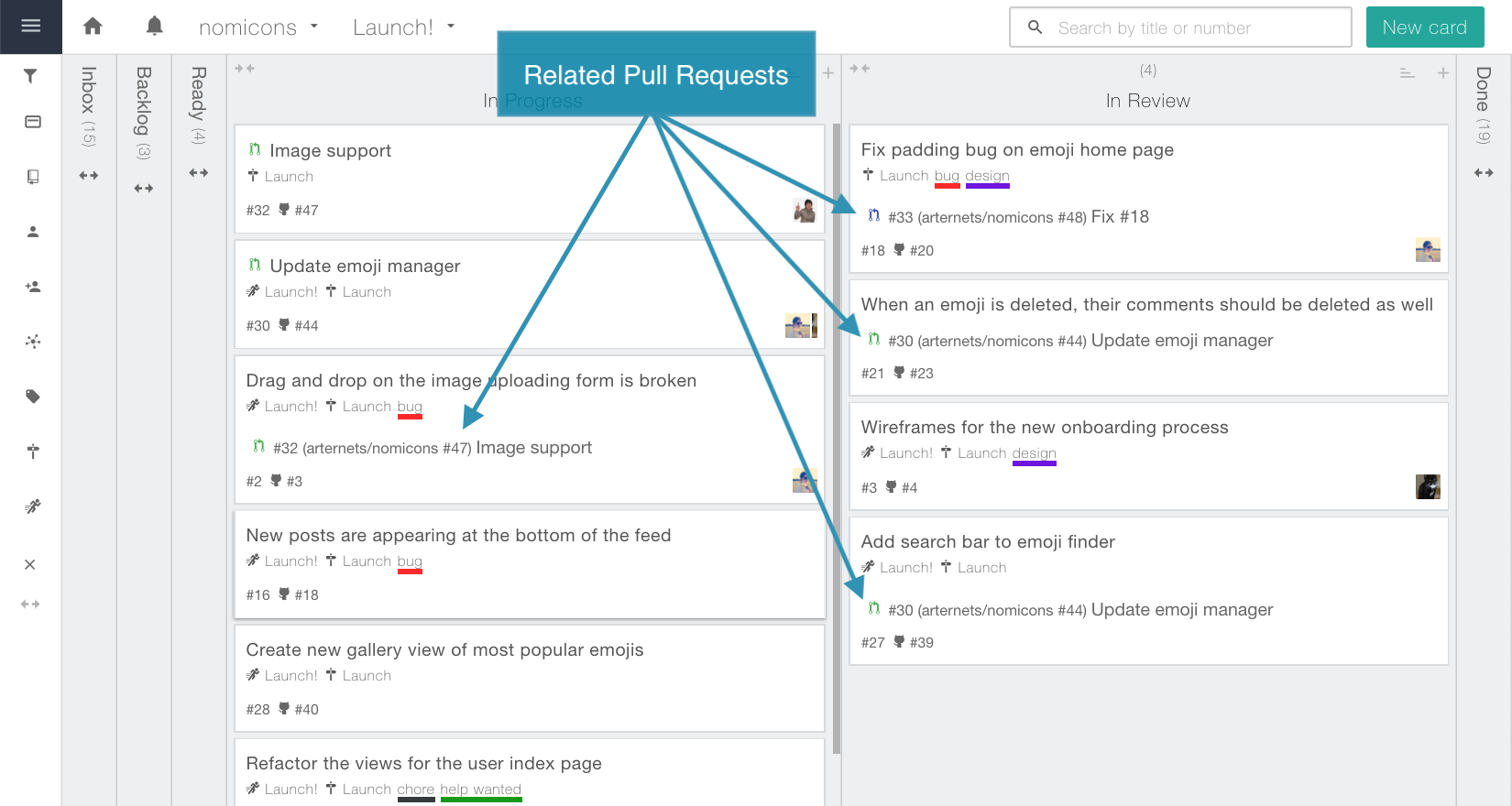
    <content type="html"><![CDATA[<h3 id="Easily-see-if-a-Card-has-Related-Pull-Requests"><a href="#Easily-see-if-a-Card-has-Related-Pull-Requests" class="headerlink" title="Easily see if a Card has Related Pull Requests"></a>Easily see if a Card has Related Pull Requests</h3><p>Cards on the Kanban Board and the Sprint Board now show related GitHub Pull Request information right on the front of the card. Previously, it was possible to see all the related Pull Requests (and other cards) on the card show view, and that hasn’t changed. What’s new is that Pull Request information is now available on the front of the card, so you can get a handle on related Pull Requests and their statuses at a glance.</p><p><img src="/blog/images/related_pull_requests/related_pull_requests.png" alt="Kanban Board showing Cards with Related Pull Requests" title="Pull Requests scoped to features makes it easier to do Agile Project Management."></p><h3 id="Using-Pull-Requests"><a href="#Using-Pull-Requests" class="headerlink" title="Using Pull Requests"></a>Using Pull Requests</h3><p>There are two common ways teams use Pull Requests. One approach is to use Pull Requests to scope code that’s supposed to be deployed together, perhaps as a release. These Pull Requests tend to be quite large and include lots of code changes. The benefit of using Pull Requests in this fashion is that once the Pull Request is merged, you know that your code is ready to ship. Another benefit is that there tends to be only a few Pull Requests open at a time, and there may only be one active Pull Request. This makes it easy to focus on getting your code ready to ship without extra management overhead. The downside is that your Pull Requests drag out for a very long time and become quite bloated with code that might not sum up to solve any business objective.</p><p>Another approach to using Pull Requests is to have them define a feature that you’re building. This approach is more popular with teams that have implemented continuous deployment. The benefit of having your Pull Requests define a feature is that the code that’s wrapped up into them works together to solve a business objective. Merging the Pull Request means that you’ve successfully implemented at least one unit of value for the company. This aligns itself more naturally with the philosophy of Agile project management, where a collection of user stories (Cards) sum up to describe a feature (Pull Request). The downside of using Pull Requests to define features is that there tends to be a lot of them around at the same time and you need to make sure none of them are slipping through the cracks.</p><p>We hope the new Pull Request information on the front of cards will make it easier for you to quickly determine which cards are part of your pull requests and let you ship with confidence, no matter what approach your team uses.</p>]]></content>
    
    <summary type="html">


        &lt;h3 id=&quot;Easily-see-if-a-Card-has-Related-Pull-Requests&quot;&gt;&lt;a href=&quot;#Easily-see-if-a-Card-has-Related-Pull-Requests&quot; class=&quot;headerlink&quot; title=&quot;
      
    
    </summary>
    
    
  </entry>
  
  <entry>
    <title>Fully Configurable Notifications</title>
    <link href="https://zube.io/blog/fully-configurable-notifications/"/>
    <id>https://zube.io/blog/fully-configurable-notifications/</id>
    <published>2018-04-22T22:23:13.000Z</published>
    <updated>2019-09-02T22:02:45.455Z</updated>
    
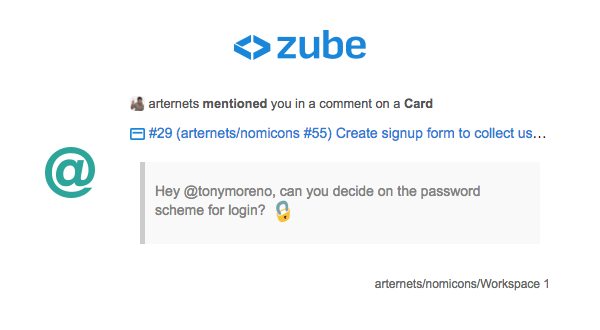
    <content type="html"><![CDATA[<h3 id="Custom-tailor-your-notifications-across-every-channel"><a href="#Custom-tailor-your-notifications-across-every-channel" class="headerlink" title="Custom tailor your notifications across every channel"></a>Custom tailor your notifications across every channel</h3><p>You’ll love the new level of control you have over your notifications. You can now configure project and workspace notifications separately, so you can receive just the events you’re most interested in. We’ve also extended our Slack notifications with new events and restyled our own notifications.</p><h3 id="Beautifully-clear-and-concise"><a href="#Beautifully-clear-and-concise" class="headerlink" title="Beautifully clear and concise"></a>Beautifully clear and concise</h3><p>At Zube, we’re all about data clarity, and the style of our new notifications reflects that. Each notification is designed to be recognizable at a glance and fully digestible as quickly as possible. The new style unifies the way email and in-app notifications are presented so you can enjoy the same level of clarity in both places.</p><p><img src="/blog/images/fully_configurable_notifications/notification.png" alt="New Email Notification" title="New and improved notifications make it even easier to track and manage your projects."></p><h3 id="Workspace-Notifications"><a href="#Workspace-Notifications" class="headerlink" title="Workspace Notifications"></a>Workspace Notifications</h3><p>The great thing about being able to control your workspace notifications is that you can zero in on the boards that are most import to you. You can follow, not follow, or mute individual workspaces so you’re only subscribed to the most relevant cards. You can also go one level deeper and customize which specific events you’re interested in.</p><h3 id="Project-Notifications"><a href="#Project-Notifications" class="headerlink" title="Project Notifications"></a>Project Notifications</h3><p>We’ve also beefed up project level notifications for Tickets, Epics, and Triage Cards. Just like workspace notifications, you can configure your subscription level as well as select which individual event notifications you’d like to receive.</p><h3 id="Slack-Notifications"><a href="#Slack-Notifications" class="headerlink" title="Slack Notifications"></a>Slack Notifications</h3><p>We’ve also enhanced the Slack notifications even more. You can specify exactly which status changes you’d like your channel to receive for Tickets, Epics, and Cards. In addition, you now have finer control over Triage and Workspace notifications.</p><h3 id="Happy-Configuring"><a href="#Happy-Configuring" class="headerlink" title="Happy Configuring"></a>Happy Configuring</h3><p>The new notification system is very powerful because it gives you full control over which notifications you’d like to receive and where you’d like to get them. We highly recommend that you take a few minutes to configure your notifications just how you like them. There are quite a few places where you can do this, so be sure to check your Notification Settings and Triage Notification Settings at the project level, and then visit every workspace to adjust your workspace notification settings there. We really do hope that the clarity of our new notification system will bring a smile to your face.</p>]]></content>
    
    <summary type="html">


        &lt;h3 id=&quot;Custom-tailor-your-notifications-across-every-channel&quot;&gt;&lt;a href=&quot;#Custom-tailor-your-notifications-across-every-channel&quot; class=&quot;heade
      
    
    </summary>
    
    
  </entry>
  
  <entry>
    <title>Slack Notification Improvements</title>
    <link href="https://zube.io/blog/slack-notification-improvements/"/>
    <id>https://zube.io/blog/slack-notification-improvements/</id>
    <published>2018-03-01T01:37:46.000Z</published>
    <updated>2019-09-02T22:02:45.455Z</updated>
    
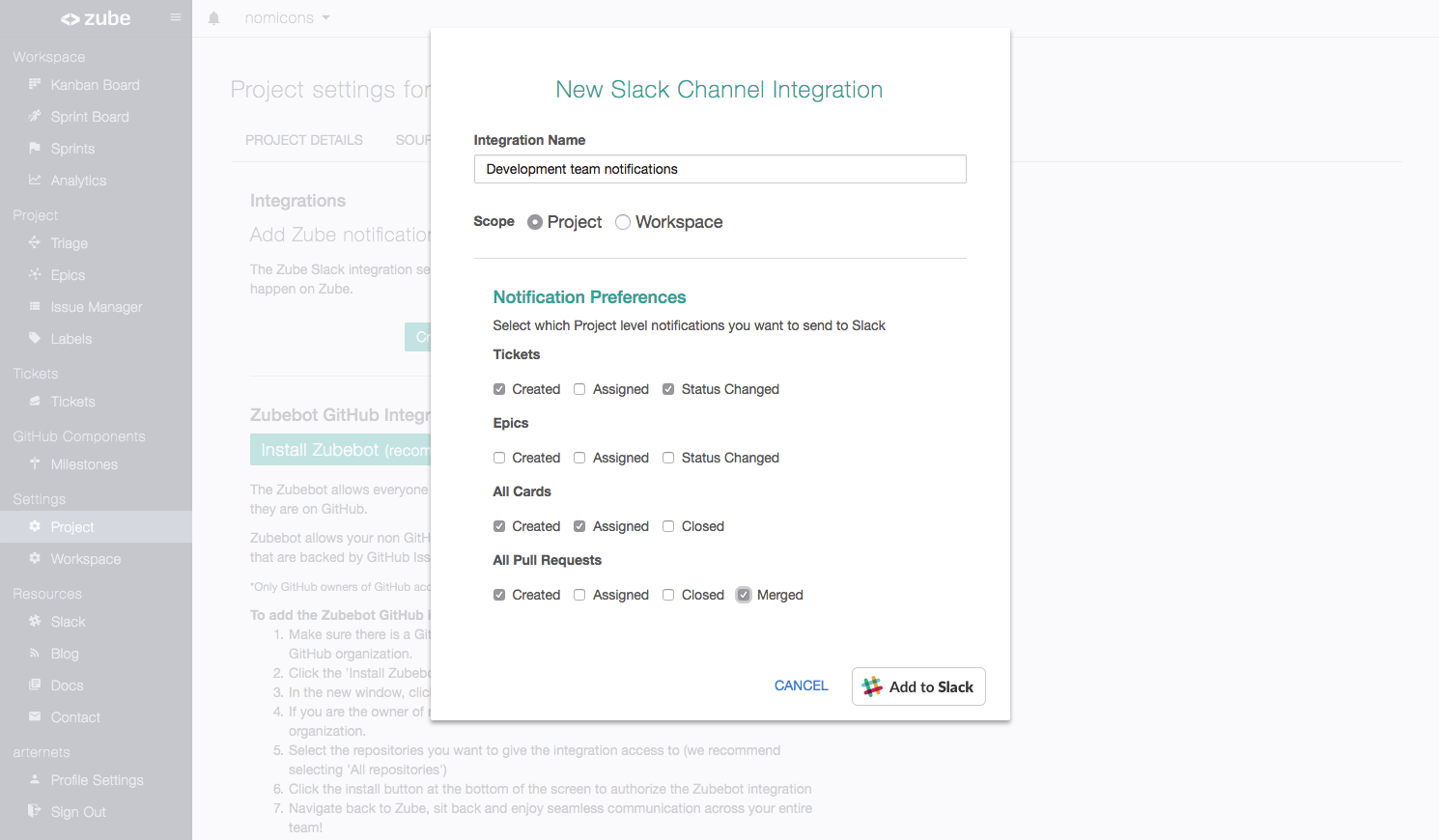
    <content type="html"><![CDATA[<h3 id="The-notifications-you-want-right-where-you-want-them"><a href="#The-notifications-you-want-right-where-you-want-them" class="headerlink" title="The notifications you want, right where you want them"></a>The notifications you want, right where you want them</h3><p>Keep your team in the loop with what’s happening on your Projects and Workspaces with Zube’s new and improved Slack integrations! You can now customize your Slack notifications based on Project or Workspace so every team gets the information they need without any extra noise.</p><h3 id="Installing-a-Slack-integration"><a href="#Installing-a-Slack-integration" class="headerlink" title="Installing a Slack integration"></a>Installing a Slack integration</h3><p>To install a custom Slack integration, navigate to the Project Settings page and click the Integrations tab. Then, click the Create a New Slack Integration button to open the Slack Channel Integration builder. In the integration builder, chose the Project or Workspace scope and then select which notifications you’d like to receive in Slack.</p><p><img src="/blog/images/slack_notification_improvements/slack_integration_builder.png" alt="Slack Channel Integration Builder" title="Customize your Slack integration so everyone is kept up-to-date on your Projects."></p><p>After you’ve configured your integration, click the Add to Slack button and follow the directions to select the Slack workspace and channel for your integration. Once you’ve authorized the integration, Zube will begin sending your custom notifications to Slack.</p><p>You can create unlimited Slack channel integrations to send custom notifications to everyone on your team.</p>]]></content>
    
    <summary type="html">


        &lt;h3 id=&quot;The-notifications-you-want-right-where-you-want-them&quot;&gt;&lt;a href=&quot;#The-notifications-you-want-right-where-you-want-them&quot; class=&quot;headerl
      
    
    </summary>
    
    
  </entry>
  
  <entry>
    <title>Welcome Enhancements</title>
    <link href="https://zube.io/blog/welcome-enhancements/"/>
    <id>https://zube.io/blog/welcome-enhancements/</id>
    <published>2018-02-11T03:01:10.000Z</published>
    <updated>2019-09-02T22:02:45.455Z</updated>
    
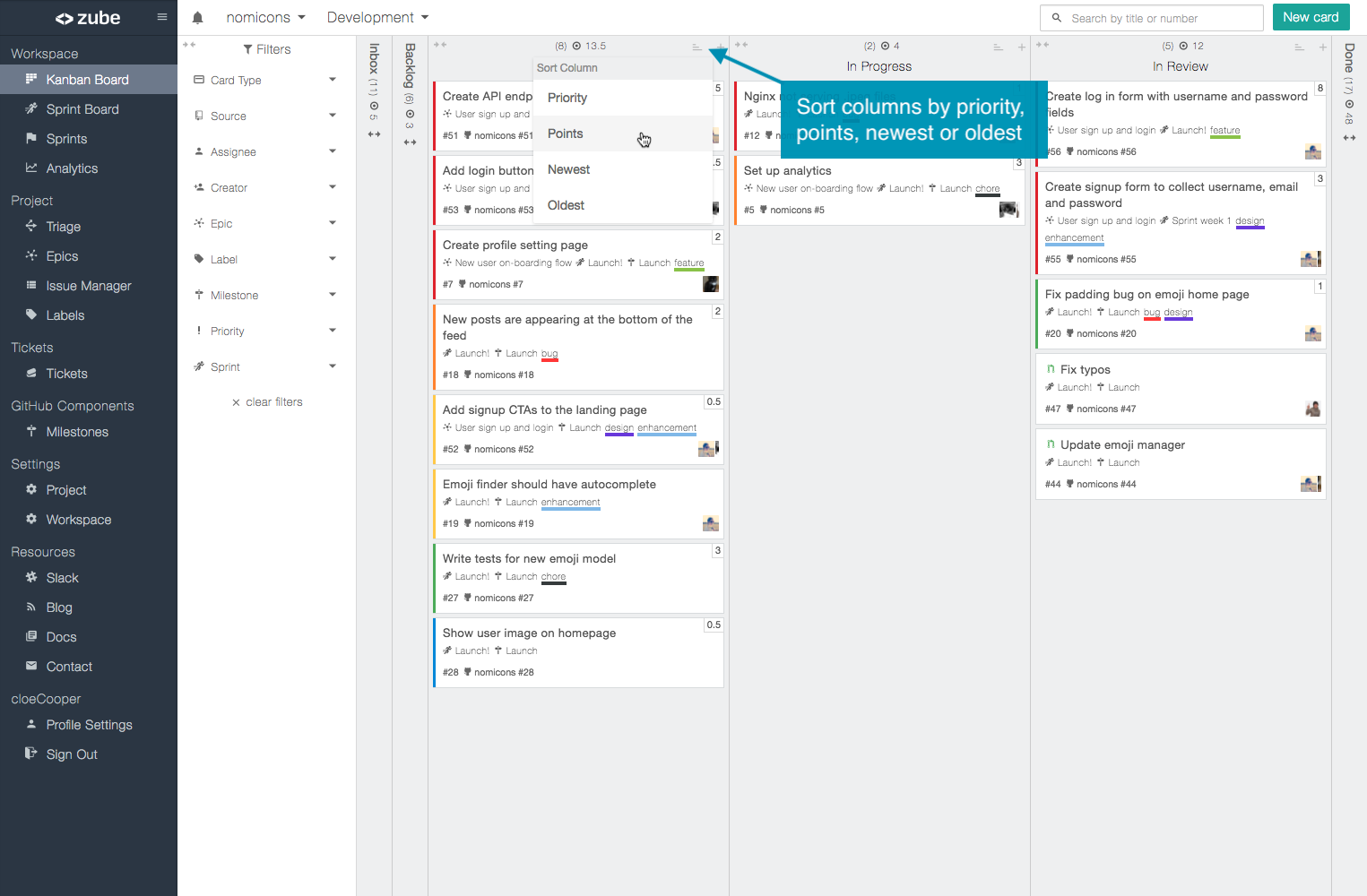
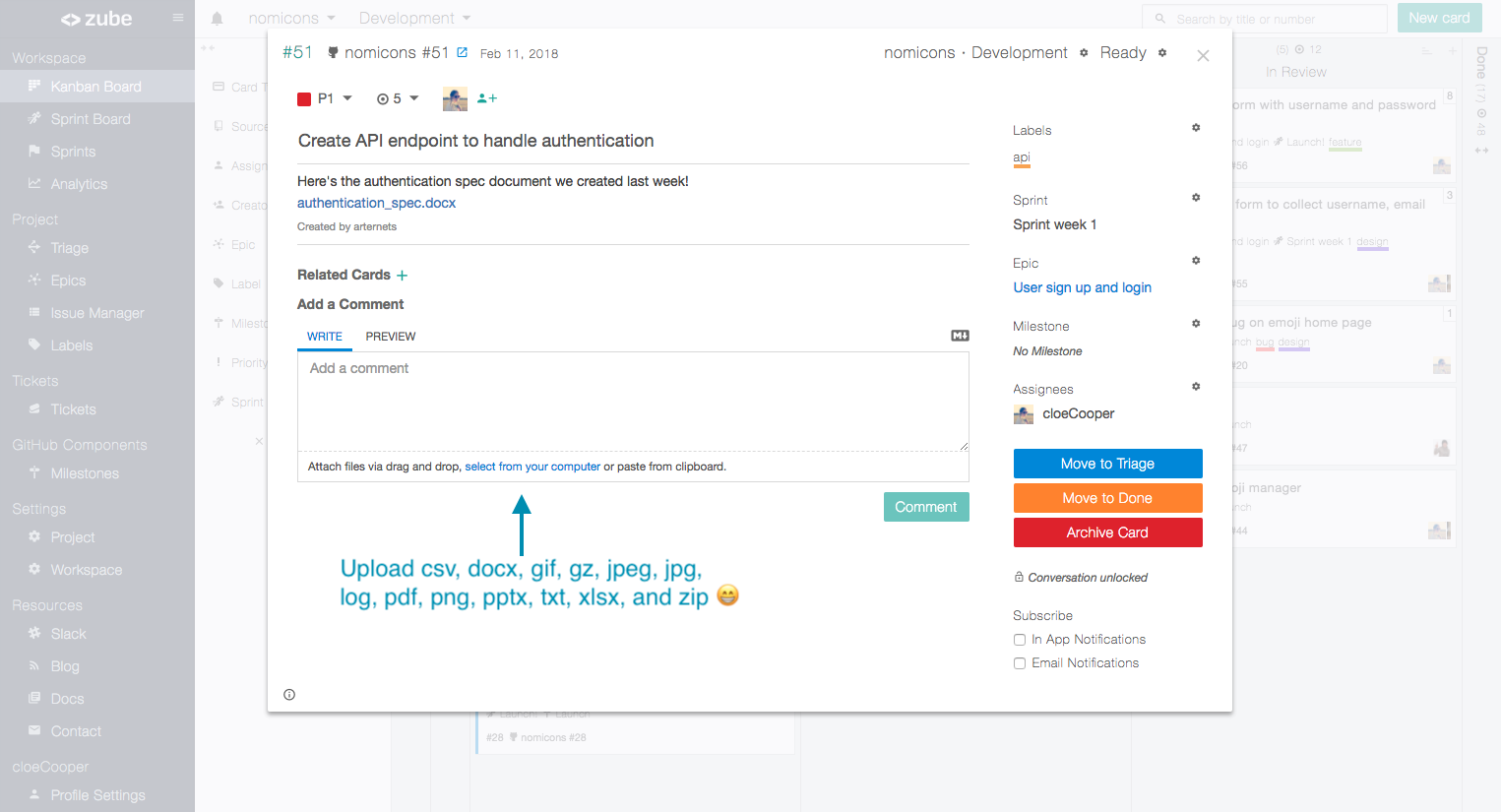
    <content type="html"><![CDATA[<h3 id="A-few-awesome-enhancements"><a href="#A-few-awesome-enhancements" class="headerlink" title="A few awesome enhancements"></a>A few awesome enhancements</h3><p>We added a few things to Zube recently that are designed to make your life easier. First up is the ability to order your cards in any kanban column. You can now order your cards at any time using the dropdown in the top right of any kanban column. You can order by Priority, Points, Newest, or Oldest. Ordering by priority is particularly useful because it is a great way to keep your backlog prioritized.</p><p><img src="/blog/images/welcome_enhancements/sorting.png" alt="The ordering function of a kanban column" title="A great way to keep your Agile project management backlog in order"></p><p>Another similar enhancement is the ability to Archive all cards that are in your Done column. There’s a small button in the upper right of the column that does just that. It’s a great way to clear out a crowded Done column if you have a traditional kanban workflow. For teams that use Sprints, it is worth pointing out that Zube automatically Archives all of your closed cards once a sprint is closed, so there’s no need to do it manually.</p><p>The third enhancement is expanded file support for uploads. You can now upload a bunch of file types like .csv, .pdf, and Microsoft documents like .docx, .pptx, and .xlsx.</p><p><img src="/blog/images/welcome_enhancements/new_file_types.png" alt="A comment form with expanded file support" title="Developers need to share coding files in order to be productive"></p><p>We hope these enhancements bring a little more joy to your day, and as always, please feel free to reach out to us to let us know what you’d love to see next.</p>]]></content>
    
    <summary type="html">


        &lt;h3 id=&quot;A-few-awesome-enhancements&quot;&gt;&lt;a href=&quot;#A-few-awesome-enhancements&quot; class=&quot;headerlink&quot; title=&quot;A few awesome enhancements&quot;&gt;&lt;/a&gt;A few aw
      
    
    </summary>
    
    
  </entry>
  
  <entry>
    <title>GitHub Column Labels</title>
    <link href="https://zube.io/blog/github-column-labels/"/>
    <id>https://zube.io/blog/github-column-labels/</id>
    <published>2018-01-17T03:06:42.000Z</published>
    <updated>2019-09-02T22:02:45.455Z</updated>
    
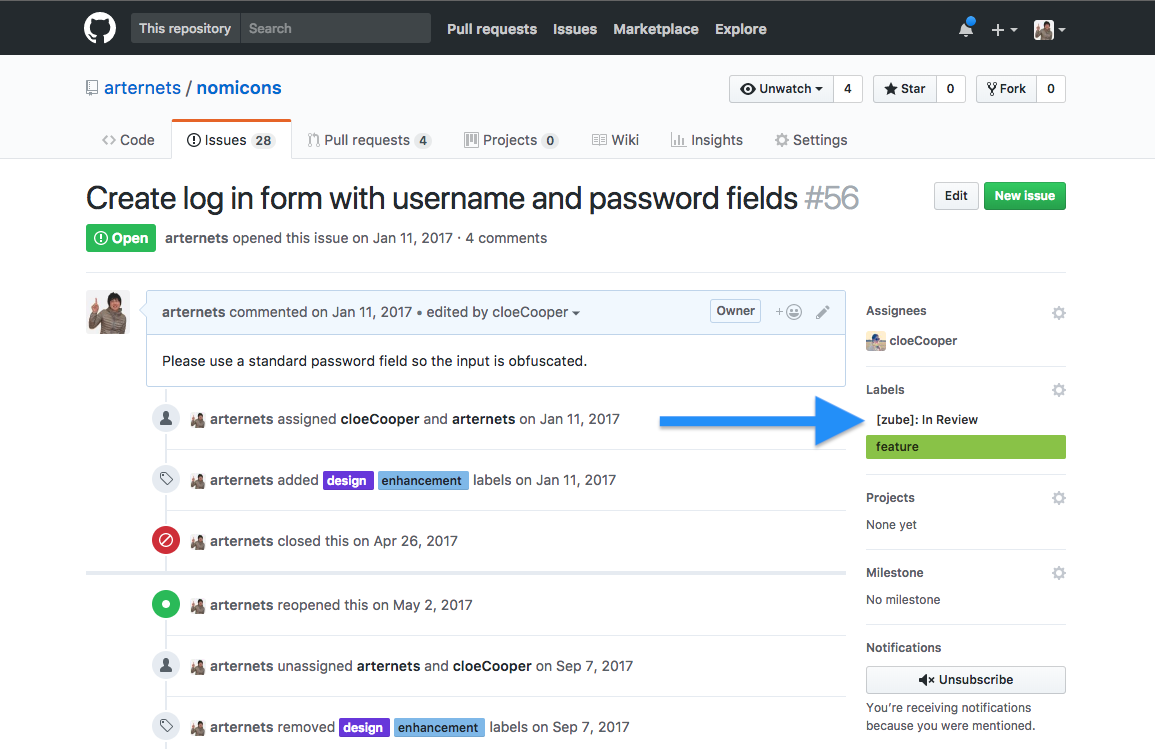
    <content type="html"><![CDATA[<h3 id="Keep-Your-Zube-Cards-in-Sync-with-GitHub-Column-Labels"><a href="#Keep-Your-Zube-Cards-in-Sync-with-GitHub-Column-Labels" class="headerlink" title="Keep Your Zube Cards in Sync with GitHub Column Labels"></a>Keep Your Zube Cards in Sync with GitHub Column Labels</h3><p>The new Column Labels feature lets developers on GitHub easily see and manipulate a card’s category in Zube. When you turn on the Column Labels setting for your Workspace, Zube will create special labels on each of your project’s GitHub source repositories for every column. When you move a GitHub backed Card from one column to another on Zube, the GitHub Issue will be updated with the corresponding column label.</p><p>There’s more good news! The Column Labels feature works the other way around as well! If a Zube column label is added to an Issue on GitHub, Zube will automatically move the Card to the appropriate column.</p><p><img src="/blog/images/column_labels/column_labels.png" alt="A GitHub Issue showing a Zube Column Label" title="Task management for teams is best done with a seamless GitHub column label integration"></p><p>You can enable Column Labels for GitHub backed Cards on the Workspace Settings page. Also, it is highly recommend that you install the <a href="https://zube.io/docs/start#zubebot-section">Zubebot</a> when using Column Labels for a seamless experience.</p><p>We hope the new Column Labels feature makes it even easier for your entire team to plan, track, and manage your projects whether they are on Zube or on Github.</p>]]></content>
    
    <summary type="html">


        &lt;h3 id=&quot;Keep-Your-Zube-Cards-in-Sync-with-GitHub-Column-Labels&quot;&gt;&lt;a href=&quot;#Keep-Your-Zube-Cards-in-Sync-with-GitHub-Column-Labels&quot; class=&quot;hea
      
    
    </summary>
    
    
  </entry>
  
  <entry>
    <title>Custom Pull Request Destinations</title>
    <link href="https://zube.io/blog/custom-pull-request-destinations/"/>
    <id>https://zube.io/blog/custom-pull-request-destinations/</id>
    <published>2017-12-08T03:29:38.000Z</published>
    <updated>2019-09-02T22:02:45.446Z</updated>
    
    <content type="html"><![CDATA[<h3 id="Send-Pull-Requests-Where-They-Belong"><a href="#Send-Pull-Requests-Where-They-Belong" class="headerlink" title="Send Pull Requests Where They Belong"></a>Send Pull Requests Where They Belong</h3><p>We’ve introduced two new workflow options for handling GitHub pull requests in your Zube Workspaces. You are now able to assign which column open pull requests should go to when they are added to a Workspace. You can also decide whether merged pull requests should be automatically archived or left in the Done column.</p><p>To change the default column for open pull requests, head to the Workspace Settings page and open the column editor. Simply drag the purple Open Pull Request indicator to any column with the state Open and any GitHub pull request that enters that Workspace will automatically be added to that column.</p><p><img src="/blog/images/pull_request_destination/pull_request_destination.png" alt="Workspace settings showing Open Pull Request default column" title="Agile developers can better manage their pull requests"></p><p>Zube will now leave your merged pull requests in the default Done column for your Workspaces instead of automatically sending them to the Archive. If you’d like to restore the old functionality of automatically archiving your merged pull requests, you can turn it back on in the Workspace settings by clicking the button underneath the column section.</p>]]></content>
    
    <summary type="html">


        &lt;h3 id=&quot;Send-Pull-Requests-Where-They-Belong&quot;&gt;&lt;a href=&quot;#Send-Pull-Requests-Where-They-Belong&quot; class=&quot;headerlink&quot; title=&quot;Send Pull Requests W
      
    
    </summary>
    
    
  </entry>
  
  <entry>
    <title>How to Avoid The Four Planning Pitfalls</title>
    <link href="https://zube.io/blog/how-to-avoid-the-four-planning-pitfalls/"/>
    <id>https://zube.io/blog/how-to-avoid-the-four-planning-pitfalls/</id>
    <published>2017-10-21T22:07:08.000Z</published>
    <updated>2019-09-02T22:02:45.451Z</updated>
    
    <content type="html"><![CDATA[<h3 id="When-you-have-to-ship-on-time"><a href="#When-you-have-to-ship-on-time" class="headerlink" title="When you have to ship on time"></a>When you have to ship on time</h3><p>Sometimes you have a deadline that you just have to hit. The problem is that deadlines are challenging to hit because people always underestimate how long it is going to take them to build something, especially software. To account for this, a trick that some people use is to take their best estimate and then double it to get the “real” time it will take. I’ve used this method myself to varying degrees of success, but I never felt very good about it. And what about Hofstader’s Law?</p><blockquote><p>Hofstadter’s Law: It always takes longer than you expect, even when you take into account Hofstadter’s Law.</p></blockquote><p>Fortunately, there is a better way to make estimates, and it goes by the name of planning poker. When I first heard about planning poker I thought it was a gimmick. However, upon closer inspection, it turns out that underpinnings of planning poker are well supported by science.</p><h3 id="The-Four-Planning-Pitfalls"><a href="#The-Four-Planning-Pitfalls" class="headerlink" title="The Four Planning Pitfalls"></a>The Four Planning Pitfalls</h3><p>The reason planning poker results in more accurate estimates is that it reduces the effects of The Four Planning Pitfalls. Let’s take a look at what those are:</p><p>The Four Planning Pitfalls:</p><ol><li>People are terrible at estimating absolute numbers (hours)</li><li>Larger tasks are more difficult to estimate than smaller tasks</li><li>Team members are susceptible to anchoring</li><li>Individuals are influenced by the planning fallacy</li></ol><p>Here’s how planning poker helps mitigate the effects of The Four Planning Pitfalls:</p><ol><li>Estimates are in terms of the relative complexity between tasks</li><li>Estimates are distributed on an exponential scale</li><li>Everyone shows their estimates at the same time</li><li>The final estimate is reached by consensus</li></ol><h4 id="The-mechanics-of-planning-poker"><a href="#The-mechanics-of-planning-poker" class="headerlink" title="The mechanics of planning poker"></a>The mechanics of planning poker</h4><p>Before we dig into the science, let me briefly describe the mechanics of planning poker so that we’re all on the same page. The way planning poker works is that each team member is given a set of cards that have the following numbers on them 0, ½, 1, 2, 3, 5, 8, 13, 20, 40, 100.</p><p><img src="/blog/images/planning_poker/planning_poker_cards.png" alt="A planning poker deck of cards" title="Planning can be Agile"></p><p>The team leader describes a work item (story) to the team and asks them to choose the card that best represents the complexity (size) of the task. Each team member places their card face down in front of them. Once everyone has placed their card on the table, the cards are turned over revealing their choices. If the cards all show similar numbers then you’ve successfully estimated the task and the process is complete. However, if there is a big difference between the highest and lowest card (like a 2 and an 8) then the people who selected those cards are given the floor to defend their choices. With this new information, the team then repeats the estimation process. The process is repeated until a consensus is reached. In practice, when the cards only differ by one number, lets say a 3 and a 5, then just pick one and move on.</p><h4 id="Why-planning-poker-works"><a href="#Why-planning-poker-works" class="headerlink" title="Why planning poker works"></a>Why planning poker works</h4><h5 id="Not-all-tasks-are-created-equal"><a href="#Not-all-tasks-are-created-equal" class="headerlink" title="Not all tasks are created equal"></a>Not all tasks are created equal</h5><p>The reality of the world is that people are terrible at estimating how long as task will take to do. Luckily, while people are terrible at making absolute estimates, they are pretty good at choosing which task is bigger, task A or task B. To take full advantage of this fact, you should get your team to start thinking in relative terms instead of absolute hours. The common way to do this is to ask your team to give each task a relative complexity score called “points” instead of estimating how long an individual task will take to do.</p><p>Once your planning session gets rolling, it is easy to assign each task a certain number of “points” based on its complexity. However, before you get rolling, you’re going to have to arbitrarily give the very first task a certain number of points. As a rule of thumb, pick a medium size task and just assign it the value of 5 points. You can then use this first task as a baseline for figuring out the relative complexity of your next task, and so on. Ranking the cards in terms of complexity will produce an ordered list that is much more true to real life than if the tasks had been ranked by hours.</p><p>Now, with all of the tasks ranked by complexity, you can figure out how long all the tasks will take to do by determining how long it takes your team to complete a “point”. While I won’t discuss the details here, you can figure it out pretty easily by tracking the total number of points your team is able to complete each week (which you can get from a <a href="https://zube.io/docs/components#analytics">velocity chart</a>) and also how many unplanned points are added per week (which you can see on a <a href="https://zube.io/docs/components#analytics">burnup chart</a>).</p><blockquote><p>As as an aside, it is also worth pointing out that while it’s important to try to determine how long it will take your team ship a new feature, it is also important to determine which tasks are the most complex, at least as far as efficiency is concerned. Teams are most efficient when they tackle tasks with the highest priority and lowest complexity first.</p></blockquote><h5 id="Uncertainty-grows-with-the-size-of-your-estimate"><a href="#Uncertainty-grows-with-the-size-of-your-estimate" class="headerlink" title="Uncertainty grows with the size of your estimate"></a>Uncertainty grows with the size of your estimate</h5><p>How much does a car weigh? I know it weighs a lot, but I don’t know the exact number. I’d guess that a car weighs somewhere between 3,000 and 5,000 lbs. Now, how much does a semi-truck weigh? I’m not sure of that either, but I’d guess somewhere between 30,000 and 50,000 lbs. </p><p>As you can see from my example, my range of uncertainty was 2,000 lbs for the car and 20,000 lbs for the truck. Making estimates like this doesn’t feel weird to me all. It seems natural to allow more leeway for the semi-truck. In general, when people make estimates they’re thinking “well it’s probably that amount ± 25%”. What they’re subconsciously doing is acknowledging that uncertainty grows with the size of their estimate.</p><p>To reflect this fact, your team should make their point estimates on an exponential scale. The scale that’s usually used for planning poker is a modified Fibonacci sequence, which takes into account that there is a wider range of error for larger guesses. The specific numbers are 0, ½, 1, 2, 3, 5, 8, 13, 20, 40, 100. To check if this scale makes sense, let’s use the same intuition we used above and see what ± 25% is for each of the numbers.</p><p><table><tr><th>Estimate</th><th>What you mean (-25% to +25%)</th></tr><tr><td>0.5</td><td>0.375 to 0.625</td></tr><tr><td>1</td><td>0.75 to 1.25</td></tr><tr><td>2</td><td>1.5 to 2.5</td></tr><tr><td>3</td><td>2.25 to 3.75</td></tr><tr><td>5</td><td>3.75 to 6.25</td></tr><tr><td>8</td><td>6 to 10</td></tr><tr><td>13</td><td>9.75 to 16.25</td></tr><tr><td>20</td><td>15 to 25</td></tr><tr><td>40</td><td>30 to 50</td></tr><tr><td>100</td><td>75 to 125</td></tr></table></p><p>Yup, looks pretty good. It make sense that there is a real difference between 2 and 3, for example, but no meaningful difference between 12 and 13.</p><blockquote><p>As an aside, I wouldn’t worry about the large numbers 40 and 100. They are really just included to indicate that a task is too large. In practice, I’ve never actually seen a task what was assigned 40 or 100. If a task is that large, then it should be broken down into smaller tasks that are easier for the team to accomplish in bite sized chunks.</p></blockquote><h5 id="Anchoring-good-for-ships-bad-for-decision-making"><a href="#Anchoring-good-for-ships-bad-for-decision-making" class="headerlink" title="Anchoring: good for ships, bad for decision making"></a>Anchoring: good for ships, bad for decision making</h5><p>Anchoring is a cognitive bias where people base their decisions too heavily on the first suggestion that’s made. Anchoring is fascinating because everyone is susceptible to it. Even if you are an expert software developer or PM, you’re still heavily influenced by the first suggestion you hear, even if that suggestion is clearly wrong. I highly encourage you to read the wikipedia article on <a href="https://en.wikipedia.org/wiki/Anchoring" target="_blank" rel="noopener">anchoring</a>.</p><p><img src="/blog/images/planning_poker/no_anchoring.png" alt="No Anchoring" title="Full stack project management should not involve anchoring"></p><p>Fortunately, anchoring is easy to circumvent by making your choice in isolation. This is why planning poker has cards. Cards make it easy for your team members to hide their choices. There are obviously other ways to accomplish the same thing. For example, everyone could just write down their choice on a piece of paper and show it to the group at the same time. And for what it is worth, you don’t need to be in the same room to do it. You can just as easily do it over video chat or instant message. The important part is to eliminate anchoring by allowing everyone to make up their minds without being influenced by someone else’s choice.</p><h5 id="You-think-you’re-better-than-you-actually-are-and-it’s-not-your-fault"><a href="#You-think-you’re-better-than-you-actually-are-and-it’s-not-your-fault" class="headerlink" title="You think you’re better than you actually are and it’s not your fault"></a>You think you’re better than you actually are and it’s not your fault</h5><p>Everyone is susceptible to the “planning fallacy”. The planning fallacy is the tendency for an individual to underestimate the complexity of a task that they are planning to do themselves. However, people don’t make the same mistake when asked to estimate how long it would take someone else to do the same task. The interesting thing about the planning fallacy is that experts are not immune from it, even when confronted with historical data showing that they had previously underestimated the time they needed to complete similar tasks.</p><p>To minimize the effects of the planning fallacy, it is important to get estimates from people who are not going to do the work themselves. A word of caution here, if your team is closely aligned, then they are still susceptible to the planning fallacy as a whole, meaning that they would give longer estimates if a different team was going to do the same work.  So in reality, even when your team reaches a consensus, their estimates are still going to be too low. Over time, you’ll be able to track how much your team’s estimates differ from reality and you should be able to account for their optimism.</p><h4 id="Start-making-better-estimates-today"><a href="#Start-making-better-estimates-today" class="headerlink" title="Start making better estimates today"></a>Start making better estimates today</h4><p>Planning poker is a proven technique for producing better estimates. I’d recommend giving it a try as it will most likely work for your team as well. If you team is too hip to do planning poker with the cards, then don’t use the cards. The important part is that you embrace a technique that avoids The Four Planning Pitfalls so you can make better estimates and ship your product on time.</p>]]></content>
    
    <summary type="html">


        &lt;h3 id=&quot;When-you-have-to-ship-on-time&quot;&gt;&lt;a href=&quot;#When-you-have-to-ship-on-time&quot; class=&quot;headerlink&quot; title=&quot;When you have to ship on time&quot;&gt;&lt;/a
      
    
    </summary>
    
    
  </entry>
  
  <entry>
    <title>The New Event Timelines</title>
    <link href="https://zube.io/blog/the-new-event-timelines/"/>
    <id>https://zube.io/blog/the-new-event-timelines/</id>
    <published>2017-09-08T01:03:33.000Z</published>
    <updated>2019-09-02T22:02:45.446Z</updated>
    
    <content type="html"><![CDATA[<h3 id="Always-know-what-happened"><a href="#Always-know-what-happened" class="headerlink" title="Always know what happened"></a>Always know what happened</h3><p>We are pleased to announce that event Timelines have been added to your Cards, Tickets, Epics, and Sprints. You’ll also find that the comments section has been consumed by the Timeline so both events and comments are displayed together. Since the Timeline feature is brand new, some events that happened a long time ago may not show up, but going forward all of your important events will appear in the Timeline as soon as they happen and will live on for posterity.</p><p><img src="/blog/images/events_timeline/card_timeline.png" alt="A card showing its event Timeline" title="The new Timeline makes it easier to do Agile project management for developers"></p><h4 id="Enhanced-Burndown-and-Burnup-charts"><a href="#Enhanced-Burndown-and-Burnup-charts" class="headerlink" title="Enhanced Burndown and Burnup charts"></a>Enhanced Burndown and Burnup charts</h4><p>You’re not doing Agile project management correctly unless you reevaluate your project’s requirements when new information becomes available, which usually comes from carefully listening to your customer support team or your developers. In an ideal world, once your team has started a Sprint, the scope of the Sprint would be set in stone and all you’d have to do is complete all the tasks methodically. However, in practice, it is often necessary to add tasks to a Sprint that is currently underway. To account for this, the Burndown and Burnup charts now have more accurate ideal trend lines. It’s no problem to add or remove cards from a Sprint, even after it has started. The ideal trend lines might start to look a little strange, but you can be confident that your product will ship on time if your team’s progress is on track.</p>]]></content>
    
    <summary type="html">


        &lt;h3 id=&quot;Always-know-what-happened&quot;&gt;&lt;a href=&quot;#Always-know-what-happened&quot; class=&quot;headerlink&quot; title=&quot;Always know what happened&quot;&gt;&lt;/a&gt;Always know
      
    
    </summary>
    
    
  </entry>
  
</feed>